Your name normally sits at the top of your page as text, set in your title font. A header logo replaces that text with an image: a design Liinks hand-letters from your name, or a logo you upload yourself. Your profile picture, bio, and social icons stay where they are.
Search engines, screen readers, and link previews still read the name in your Name field, so keep it filled in even once a logo is showing.
Open the logo panel
- Click Edit page in the sidebar to open the page editor.
- Open the Header section at the top of the left panel. On a computer you can also hover over the header in the preview and choose Display name; on a phone, tap your header in the preview.
- Click the Logo button at the right end of the Name field. Once your page has a logo, the button shows a small preview of it instead.
The Name logo panel opens beside the editor, where block editors open (on a phone, in the editor's sheet). It has three parts: Your logo, Style, and Make it 3D. Style and Make it 3D appear once a logo is selected.
Design a logo from your name
If you haven't had designs drawn yet, Your logo starts with a card called Design a logo from your name.
- Check the name in Name for your logo. It starts as your page's name. Edit it to exactly what you want lettered: drop a tagline, or keep a word you'd like in the logo. Emoji and decorative symbols are left out, and the name can be up to 60 characters.
- Click Design my logo.
- Wait about half a minute. If your page doesn't have a logo yet, the panel shows a short animation while your designs are drawn. You can close the panel and come back later; the designs keep drawing and will be waiting for you.
- Up to four designs appear, two to a row. On a page with no logo, the first one is selected for you so you can see it on your page right away.
- Click the design you like and check it in the preview, then click Save.
Each set has a script, a serif, a sans serif, and a display design, drawn from 15 lettering styles: brush script and Art Nouveau capitals, block letters and bubble letters, a ribbon banner, a sticker, 70s extruded lettering, and more. The styles are picked to suit your name and bio, so two pages rarely get the same four looks.
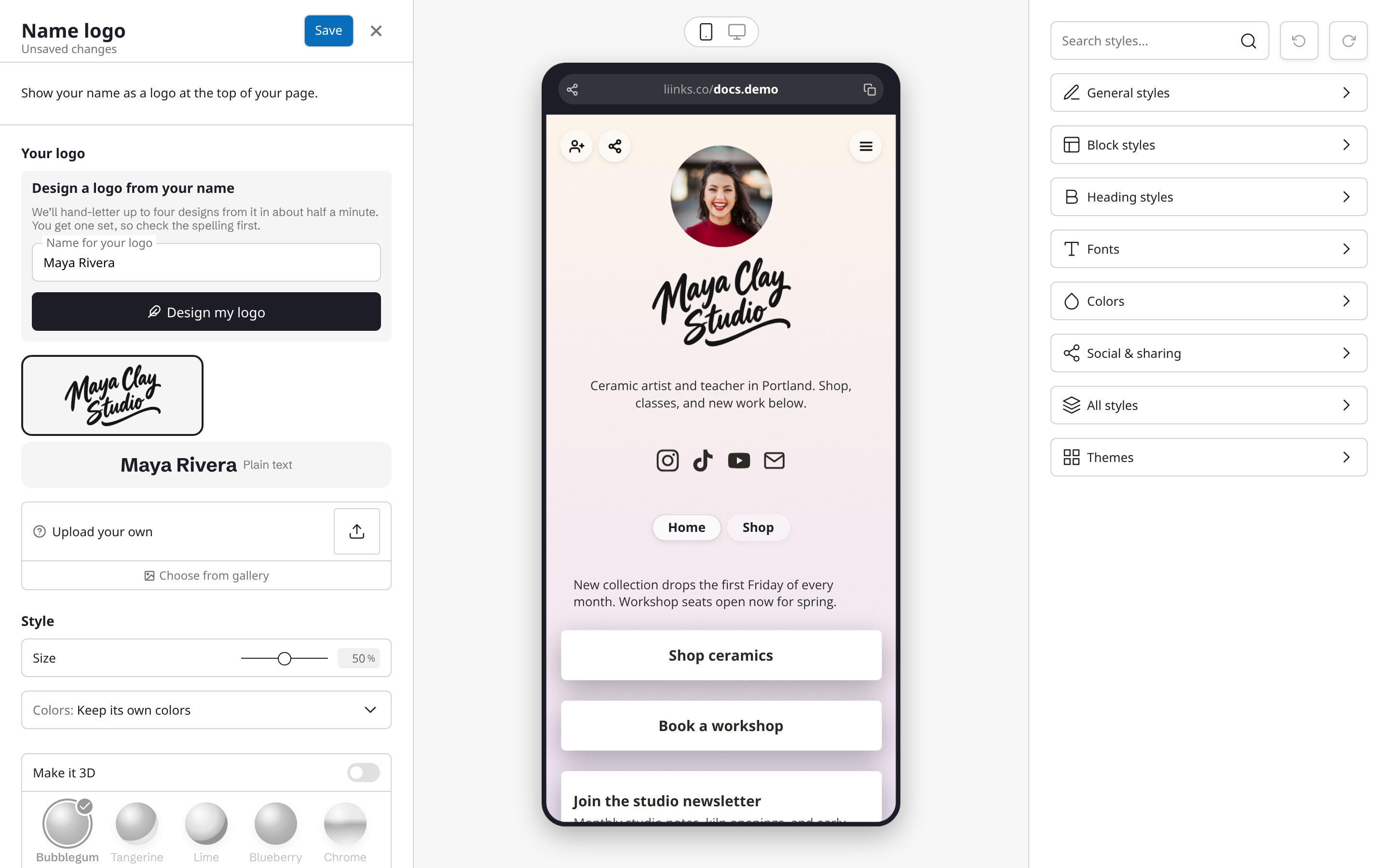
Every design is hand-drawn, not set in a font, so look each one over before you pick it. Now and then a letter comes out slightly off, more often in names written outside the Latin alphabet. If one isn't right, pick another or upload your own.
Your designs are also added to your Media gallery, picked or not, so you can use them elsewhere on your page.
You get one set
Each page gets one set of designs, which is why the card asks you to check the spelling first. Once your set is drawn, the card goes away and your designs stay in the panel for good.
- Got designs when you set up your page? That was your set. You'll find it in the panel, with no card to draw another.
- The designs didn't come out? If something went wrong and no designs appeared, the card stays with a note saying so. Try again; a set that came out empty doesn't count.
- Changing your name later? A logo is a picture of the name it was drawn from, so editing your Name field doesn't redraw it. To match a new name, upload a logo of your own or switch back to Plain text.
- Daily limit. Drawing a set counts toward the daily limit on AI images (see Generate images with AI). If you've reached it, the panel says designs aren't available right now; try again tomorrow.
Choose your logo
Your logo lists everything you can show at the top of your page:
- Your designs, two to a row.
- Current logo: the logo your page has now, when it isn't one of your designs.
- Your upload: an image you've just uploaded in the panel.
- Plain text: your name as text, with no logo. Choosing it and saving removes the logo and its 3D look.
Upload your own logo
Click Upload your own under the designs to use a logo you already have. A PNG with a transparent background looks best, since it sits on any theme without a box around it.
Uploaded logos show in their own colors to start with. You can change that under Style.
Style
- Size: makes the logo larger or smaller. Very wide or very tall logos are capped so they always fit your header.
- Colors: Match my text color repaints the logo in your page's text color, and follows along if you change theme or color later. Keep its own colors shows the image exactly as it is.
Designs from your name are drawn in a single dark ink and start on Match my text color, which is usually what you want. Uploads start on Keep its own colors. If your upload has several colors, keep it that way: Match my text color fills every visible part of the image with one color.
Make it 3D
Turn on Make it 3D to show your logo as a glossy keychain charm. The charm is drawn live on your page: it sways gently, turns to face the front when it appears, and spins when a visitor drags it sideways, then settles back.
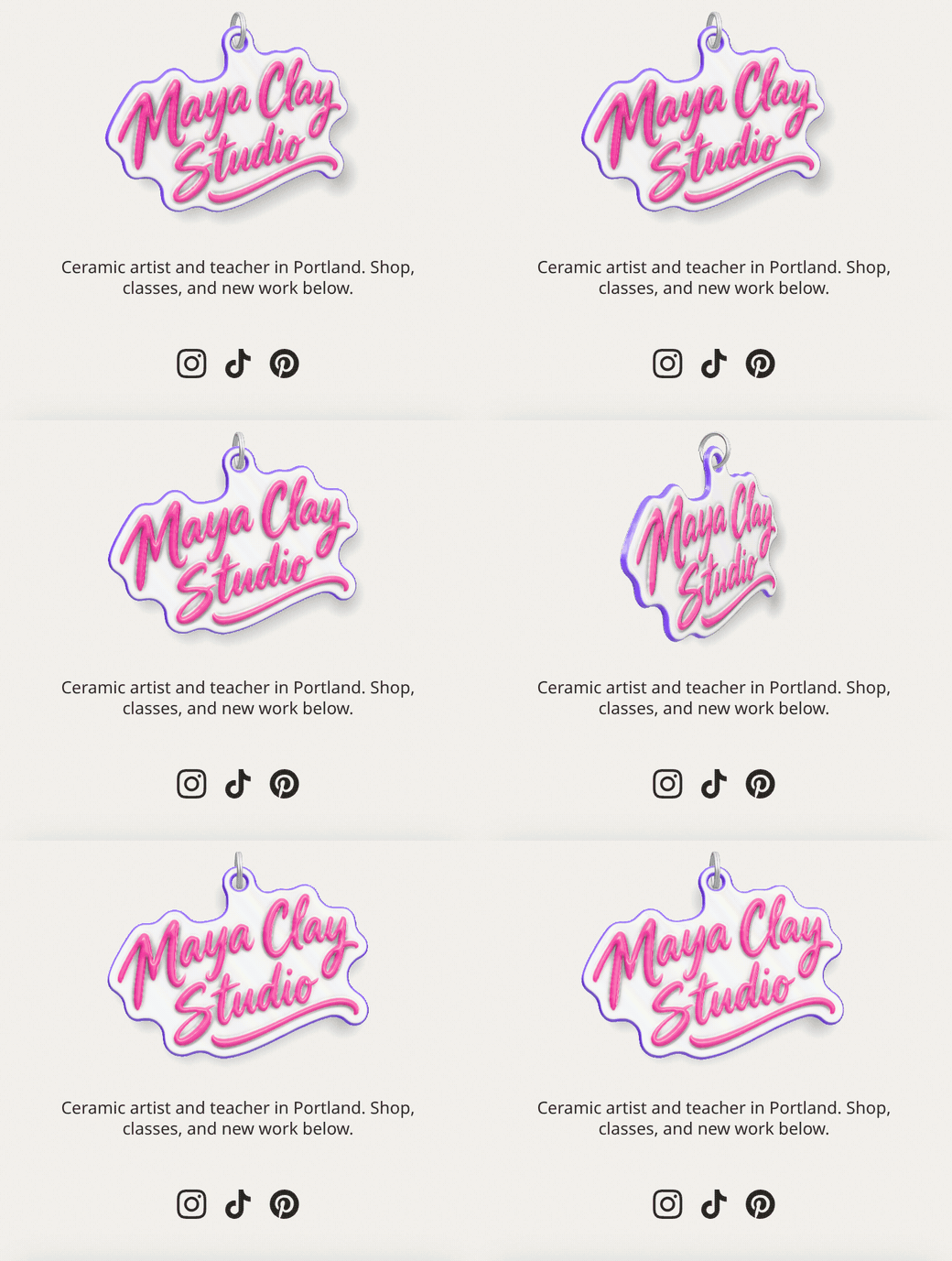
Choose a style:
- Bubblegum, Tangerine, Lime, and Blueberry: bright colored letters on a contrasting rim.
- Chrome, Gold, and Holo: all metal, with Holo's rainbow foil shifting as it turns.
- Theme: takes its colors from your page, so it changes with your theme.
- Custom: your own colors and finish.
Under the styles:
- Keyring hangs the charm from a split ring, which swings when the charm is dragged.
- Customize opens every part of the look. Colors sets the Letters, Rim, and Edge. Metal turns the letters or the rim to metal. Shine runs from matte to glassy, Pearl adds a rainbow sheen, and Glitter adds sparkling flakes. Changing any part of a style makes it Custom. The exception is Theme: its colors keep following your theme even when you change its metal, shine, pearl, or glitter, until you click Pick my own to set them yourself.
Turning Make it 3D off puts the flat logo back. The styles stay visible, grayed out, so switching it on again brings back the look you had.
Good to know about 3D logos:
- It works on uploaded logos too. The charm is shaped from your logo's outline and painted in the charm's own colors, so a logo on a transparent background works best. A logo on a solid background is shaped as one solid block, background and all.
- It's just the header. Your page's header shows the charm. Smaller previews, such as the theme cards, show the flat logo.
- Every visitor still sees your logo. On a device or browser that can't draw 3D, visitors see the flat logo instead. Visitors who've asked their device to reduce motion see the charm standing still.
- Phones scroll as normal. On a phone, a sideways swipe spins the charm, and swiping up or down scrolls the page as usual.
Show the logo without your profile picture
To let your logo lead on its own, turn off Show profile picture in General styles in the Styles panel. Your profile picture is left out of the header, and its size, shadow, and border options are hidden while it's off, along with QR code on profile picture.
- The switch isn't offered on the Headshot header layout, which is built around your photo.
- Uploading a new profile picture turns it back on, so a new photo always shows.
See Design options for the rest of the profile picture settings.
The verified badge
If your profile is verified and Verified badge is on (in Social & sharing), the badge sits at the top-right corner of your logo, the way a trademark sign does. On a 3D logo it sits at the corner of the charm's rim. See Verifying your profile.
Saving and discarding
Nothing changes on your page until you click Save. Everything you do in the panel (picking a design, uploading, sizing, colors, the 3D look) shows straight away in the preview beside it, and "Unsaved changes" appears under the panel's title. If you close the panel without saving, you'll be asked whether to discard your changes.
Logos when you set up a new page
When you set up a new page, Liinks may draw logo designs from the name it fills in or the one you type, and offer them on a Your logo step before you choose a theme. Pick one, try the 3D styles, and decide whether to show your profile picture beside it, or pick Plain text to keep your name as text. Those designs are your one set, and you can change your mind any time from the Logo button.
Tips
- Applying a theme never swaps or removes your logo. A logo on Match my text color, or a 3D logo in the Theme style, takes on the new theme's colors.
- The Custom logo option in Social & sharing is something different: a small logo at the bottom of your page, in place of the "Made with Liinks" badge. See Remove the "Made with Liinks" badge.
- A short name makes the strongest logo. If your page name includes a tagline, leave it out of Name for your logo and keep it in your bio or Tagline instead.