Don't have the right image on hand? You can generate one with AI directly in the editor. Anywhere you'd normally upload an image, you'll find a Generate with AI option alongside the usual upload and gallery choices.
You can generate images for your:
- Profile picture — in the Header section of the Content tab.
- Page background — in General Styles on the Styles tab, when your background type is set to Image.
- Link thumbnails — in the imagery options when you add or edit a link.
How to generate an image
- Open the image field you want to fill (profile picture, background, or a link thumbnail).
- Click Generate with AI.
- Describe the image you want in plain language, for example "a soft pastel gradient" or "a minimal coffee cup icon."
- Pick a style: Photo, Illustration, Abstract, Logo, or Other.
- Click Generate and wait a moment for your options to appear.
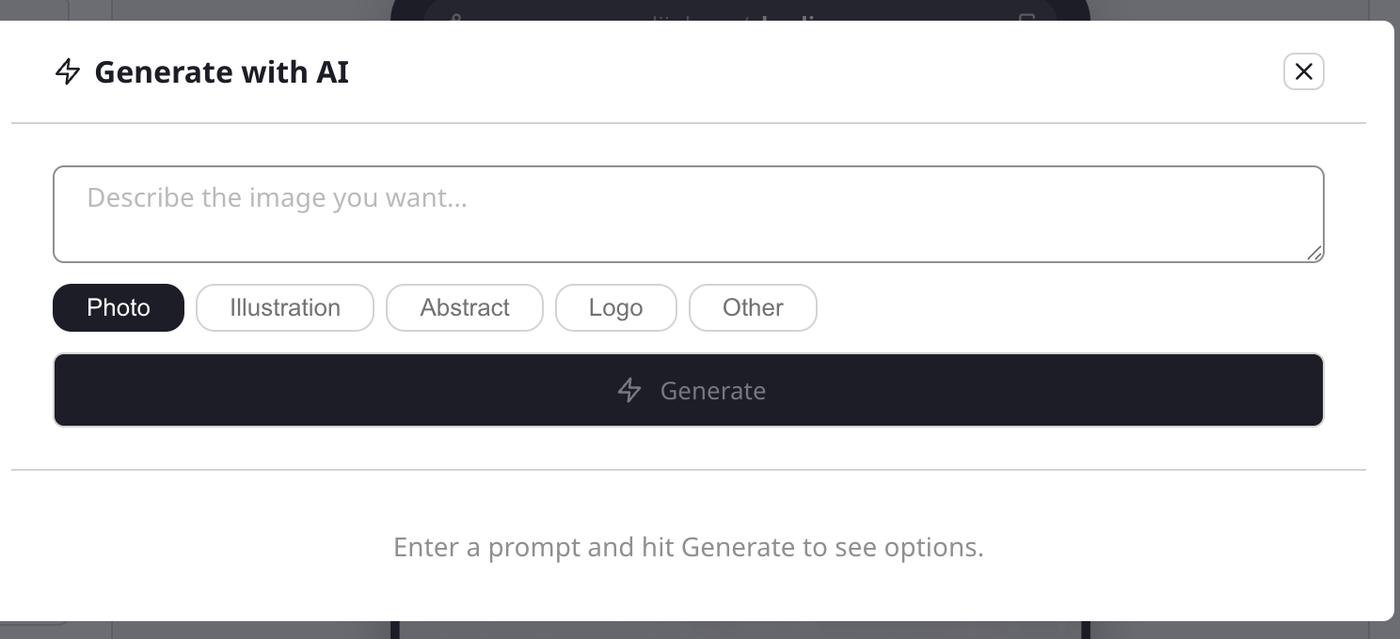
A set of options will appear as thumbnails. Click the one you like best and it's applied to your page right away. If none feel right, tweak your description or pick a different style and hit Generate again for a fresh set.
Good to know
- Everything stays editable. A generated image behaves exactly like one you upload, so it's added to your Media Gallery and you can swap or remove it later.
- Logos are symbols, not words. AI can't reliably spell out text, so a logo comes out as an iconic mark rather than your business name in letters. Add a text block with your name separately if you need it.
- Daily limit. You can generate up to 30 images per day. If you hit the limit, it resets the next day.
- Not every prompt works. Some descriptions get filtered out. If nothing usable comes back, try describing something different.