We went through the page editor screen by screen and fixed what got in the way. Here's what you'll notice.
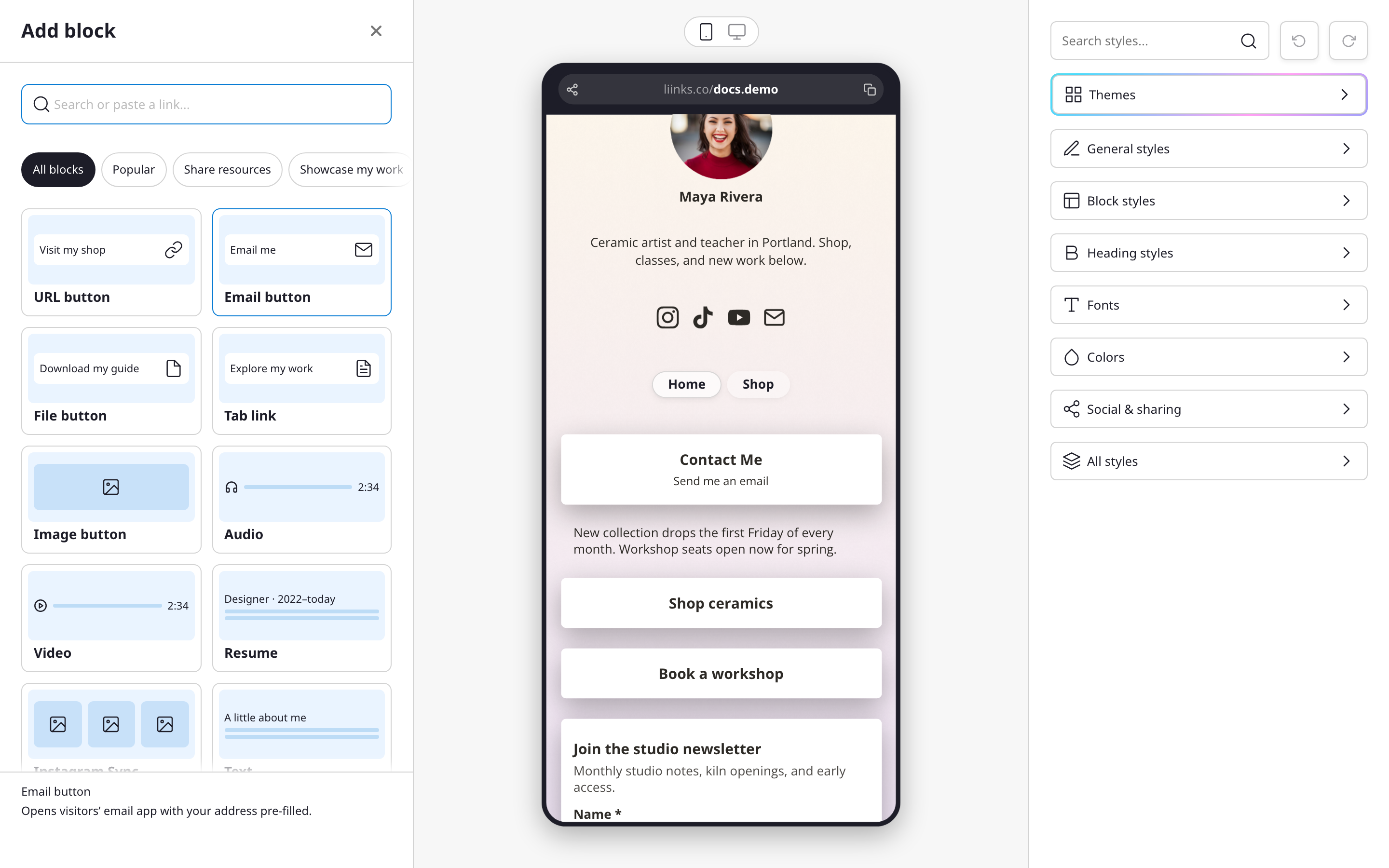
Design is now Edit page. The sidebar item that opens your editor is called Edit page. Everything is where it was: your blocks on the left, the live preview in the middle, and every design setting in the Styles panel on the right.
A new Add block picker. Every block type is now a card with a small preview of what it looks like. Narrow the list with chips like Popular, Tell my story, or Build trust, or type in the search field (paste a link there to create a link block straight away). Hover over a card to see what it does and how it would look on your page. See Block types for the full list.
Undo for deletes. Delete a block and an Undo button appears for a few seconds, so a slip costs nothing. Older deletes are still recoverable from Deleted blocks, now a button at the bottom of your block list. The Media gallery button sits right next to it.
Hidden blocks say so. A block you've hidden with the eye icon now carries a Hidden tag in your list, so it's obvious at a glance which blocks visitors can't see.
No more lost edits. If you close a block or step back out of a screen with changes you haven't saved, the editor asks before discarding them.
Adding a tab can add its button too. When you add a tab, a toggle offers to put a button for it at the bottom of the tab you're editing, so visitors can find it.
See your page at full size. On desktop, switch the preview to the computer view and click Full size to see your page at your window's real width.
A few smaller things:
- Substack is now a social icon. Enter your Substack username or paste your profile link.
- QR code names are easier to find. The name field in the QR studio now looks like the editable field it is, and downloads are named after the code, so a folder of QR codes is easy to tell apart.