The Text block lets you write formatted content directly on your page. It's perfect for a bio or about section, event details, instructions, or any written content that doesn't belong in a button. Give it a style and the same words can sit on a sticky note, in a speech bubble, on a scrap of torn paper, or on a chalkboard.
How to add a Text block
- Click Edit page in the sidebar, then click Add block.
- Choose Text (you'll find it under the Popular and Tell my story filters). To start with a taped-on note, choose Sticky note under Tell my story instead: it's a Text block with the Sticky note style already applied.
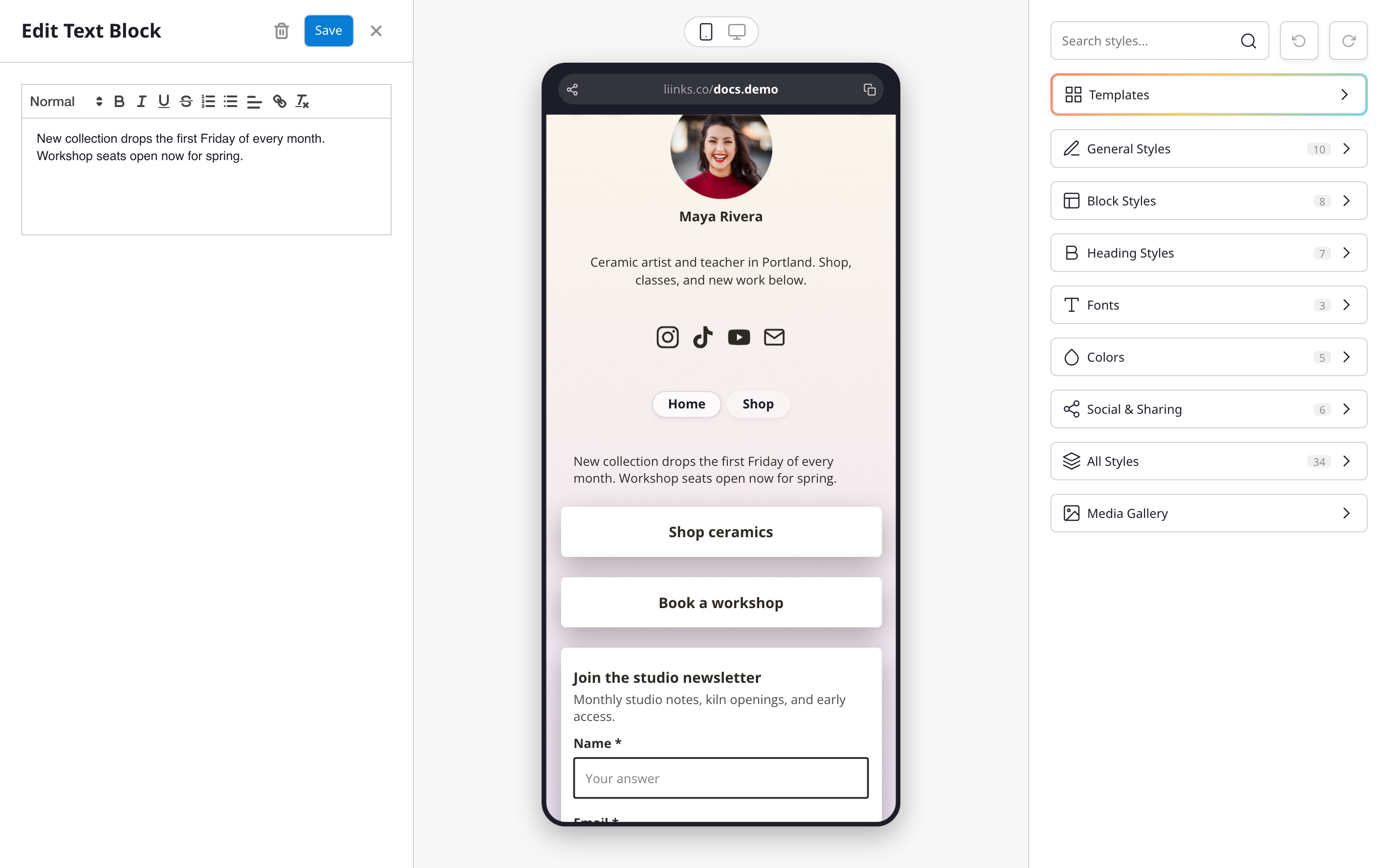
- Write your content in the editor. The preview shows how it will look on your page as you type.
Formatting options
The Text block includes a rich text toolbar:
- Headings: three heading sizes for structuring longer content.
- Emphasis: bold, italic, underline, and strikethrough.
- Lists: bulleted and numbered lists.
- Alignment: left, center, right, or justified.
- Links: turn any selected text into a clickable link.
Styles
The Style section below your text sets the look of the block. There are six styles:
- Plain: your text straight on the page background, in your page's fonts and colors. This is the default, and how every Text block looked before styles existed.
- Card: your text inside a card styled like your page's other blocks, with the same color, border, corners, and shadow.
- Sticky note: a square of colored paper, taped on and tilted a little, in a handwritten font.
- Speech bubble: a rounded bubble with a tail, like a chat message. It starts in your page's block color.
- Torn paper: a scrap of paper with ripped top and bottom edges.
- Chalkboard: chalk lettering on a dark board in a wooden frame. Good for menus, specials, and opening hours.
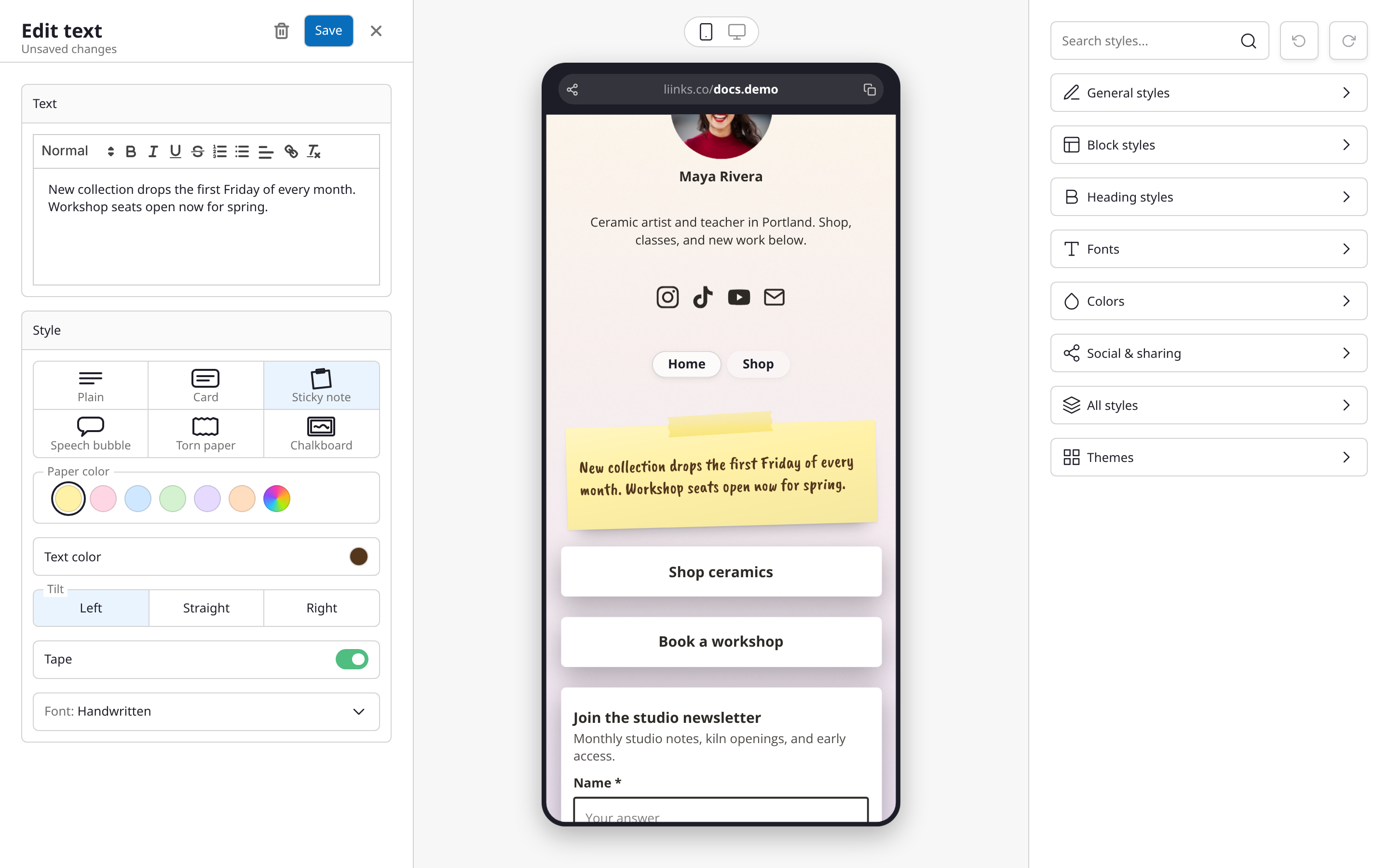
Each style is a preset. Switching to another style starts fresh from that style's own colors, tilt, tape, and font, so pick the style first and fine-tune it after.
Style options
The options under the style picker change with the style you choose.
Colors. Sticky note, Speech bubble, Torn paper, and Chalkboard each have a row of color swatches chosen for that style, labeled Paper color, Bubble color, or Board color:
- Sticky note: yellow, pink, blue, green, lilac, and peach.
- Speech bubble: your page's block color, then chat-app blue, green, gray, mint, and dark.
- Torn paper: cream, white, parchment, kraft, newsprint, and black.
- Chalkboard: slate green, black, navy, and plum.
The last swatch in each row, a rainbow color wheel, is Custom color: it opens a color picker for any color, with your page's own colors as quick picks.
Text color. Each swatch brings an ink that suits it, such as white on the blue speech bubble, and the Text color field shows that matching ink until you pick your own. Choosing a different swatch resets the ink to match the new color, so you're never left with ink that only suited the old one.
Tilt. Sticky note and Torn paper can lean Left, stand Straight, or lean Right. Sticky notes start leaning left, torn paper leaning right.
Tape. Sticky note and Torn paper can have a strip of see-through tape across the top. It's on by default for sticky notes.
Font. Every style, Plain and Card included, can use your Page font or one of three handwriting fonts: Handwritten, Marker, or Print. Sticky notes start in Handwritten, Torn paper and Chalkboard in Print, and the other styles in your page font.
Using a Text block as a spacer
A Text block can hold nothing but blank space, which makes it a quick spacer between two blocks. Type a space on each empty line you want: a line with a space on it counts as content. A block with only empty lines and no characters at all still counts as empty and won't save.
Tips
- Plain and Card follow your page's fonts and colors automatically. The paper styles bring their own colors, so they stand out on any theme.
- Use a sticky note for something time-sensitive, like a booking cutoff, a sale, or a holiday closing.
- Keep paper styles short. A note reads best in a few lines; longer text is easier to read as Plain or Card.
- If you've been adding a picture of a note to your page, rebuild it as a Text block. Real text can be edited in seconds and read by screen readers.
- Use a Heading block instead if all you need is a short section header between groups of links.
- Like any block, a Text block can be hidden, reordered, or placed inside a folder.