Everyone who sends one of your forms is saved as a contact in your Audience. If you email your subscribers with Mailchimp, Klaviyo, Flodesk or Kit, connect it in Settings and each new subscriber is also added to the audience, list, segment or form you pick there.
Liinks doesn't send emails itself, so your email service is where you write to your subscribers. Your contacts stay in Liinks as well, whichever service you connect.
Connect your email service
- In your dashboard, open Settings and go to Contacts (the Contact Collection Settings section).
- Under Storage, pick your service: Mailchimp, Klaviyo, Flodesk or Kit (ConvertKit).
- Paste your API key into the key field. Each service keeps its key in a different place (see Where to find your API key below). Liinks checks the key a couple of seconds after you stop typing, and tells you under the field if something is wrong with it.
- Once the key is accepted, choose where subscribers should go. The field is named after what your service calls it: Add subscribers to audience for Mailchimp, list for Klaviyo, segment for Flodesk and form for Kit. Liinks starts you on the first one, so change it if you have more than one.
- Click Update Settings.
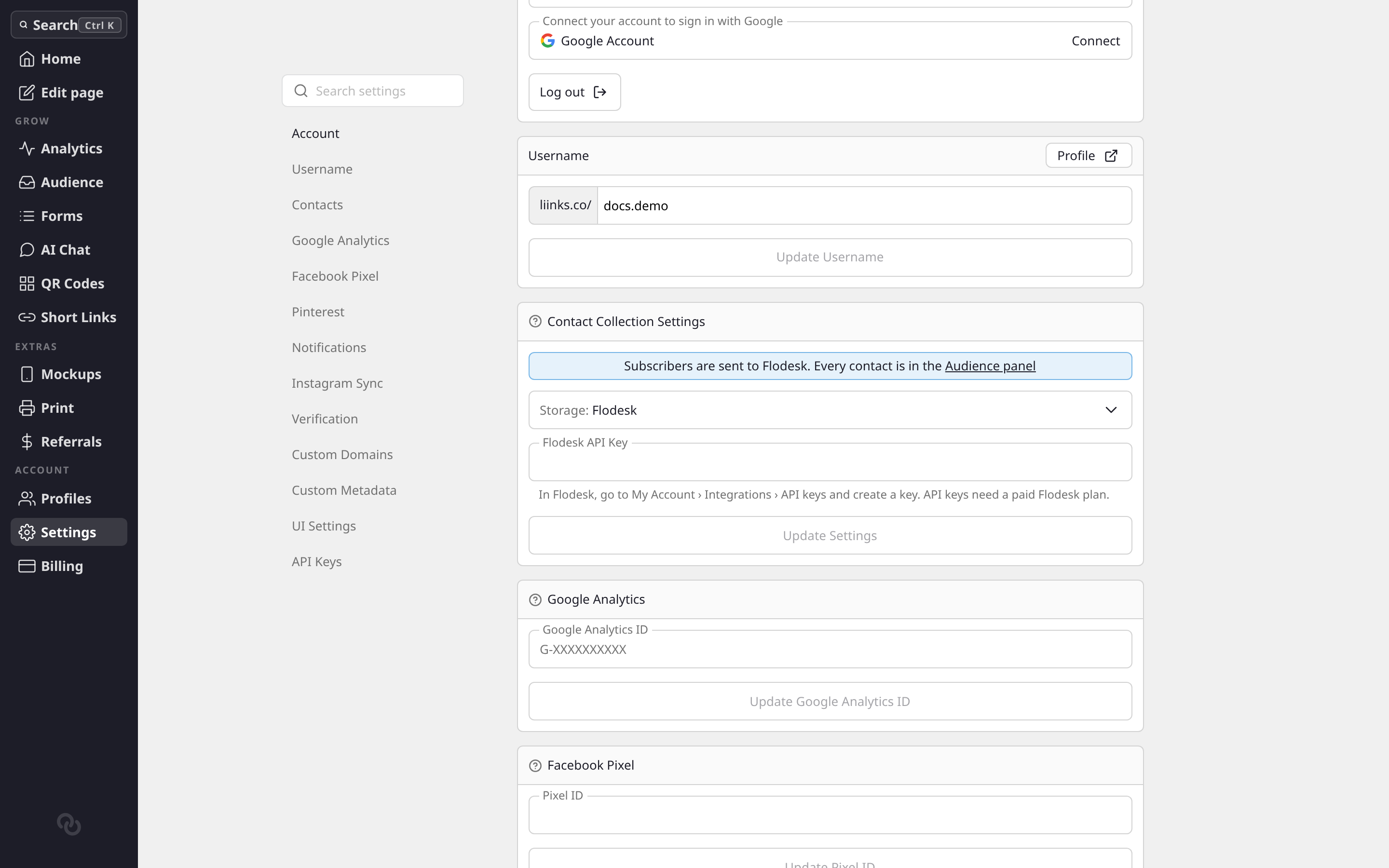
From then on, each new subscriber is sent to your service as soon as they submit your form. To check it's working, submit one of your forms yourself with an email address you can look up, then find it in your email service.
Where to find your API key
Mailchimp
Create a key under Extras > API keys in your Mailchimp profile. Subscribers join the Mailchimp audience you pick, with the status Subscribed and a liinks tag. Only the email address is sent. See Connecting to Mailchimp for the step-by-step and fixes for common Mailchimp issues.
Klaviyo
In Klaviyo, go to Settings > API keys and create a private API key (it starts with pk_) with full access to Lists, Profiles and Subscriptions. A read-only key isn't accepted, because it couldn't add anyone.
Subscribers join the list you pick, with consent to email marketing recorded with the source "Liinks". Their first and last name go on their Klaviyo profile when your form has a Name field. If the list uses double opt-in, Klaviyo emails them to confirm first, just as it would for its own signup forms.
Flodesk
In Flodesk, go to My Account > Integrations > API keys and create a key. Flodesk only offers API keys on its paid plans.
Subscribers are added to the segment you pick, with their first and last name when your form has a Name field. If Flodesk already has them, they keep the segments they were in. Flodesk doesn't send them a double opt-in email.
Kit (ConvertKit)
In Kit, go to Settings > Developer and add a V4 API key. Keys made for Kit's older V3 API won't work.
Subscribers are added to the Kit form you pick, as if they'd signed up through it, as active subscribers. Their first name comes along when your form has a Name field (Kit doesn't have a last name field). Liinks lists your active Kit forms to choose from.
Who is sent to your email service
Only subscribers are sent. A contact is anyone who sends a form with Create new contacts turned on, and a subscriber is a contact who agreed to your emails. Each form decides who that is with its Subscribe to emails setting:
- Everyone: everyone who sends the form is subscribed. Use it for newsletter and waitlist forms.
- Ask with a tick box: the form shows an unticked "Add me to the mailing list" box, and only visitors who tick it are subscribed.
- No one: contacts are saved in your Audience, but nobody is subscribed or sent anywhere.
So someone who sends your booking form without ticking the box is saved in your Audience as Not subscribed, and isn't added to your email service. Once someone has subscribed, they stay subscribed in Liinks, even if they later send another form without ticking the box. See Forms for where to change the setting.
Subscribers you already have
Connecting a service sends new subscribers from that moment on. People who subscribed before you connected it aren't sent. To bring them over, open Audience, click the Subscribed tab, click Export CSV, and import the file into your email service.
Switch or disconnect
You can connect one email service at a time. Picking a different service under Storage and saving replaces the old connection, and the old key is removed from Liinks. To stop sending subscribers anywhere, pick Liinks and click Update Settings. Your contacts stay in your Audience either way.
Troubleshooting
The key isn't accepted
The message under the key field says what's wrong. The usual causes:
- Klaviyo: the key isn't a private key (it should start with
pk_), or it doesn't have full access to Lists, Profiles and Subscriptions. - Kit: the key is from Kit's older V3 API. Add a V4 key instead.
- Mailchimp: part of the key is missing. Copy the whole key, including the ending after the dash (such as
-us21).
If the field says no audiences, lists, segments or forms were found, create one in your email service first, then paste the key again.
New subscribers aren't showing up
- Check the form. Open it and make sure Create new contacts is on and Subscribe to emails isn't set to No one. On a form that asks with a tick box, only visitors who tick it are sent.
- Check the contact. In your Audience, a contact who isn't sent shows Not subscribed in the Status column.
- Check the key. Open Settings > Contacts. Liinks checks your saved key again when the section loads, so a key you've deleted or changed in your email service shows an error there. Create a new key, paste it in and click Update Settings.
Your form keeps working while a connection is broken: visitors can still submit it, and they're still saved in your Audience. Once you've fixed the connection, export the ones who were missed from the Subscribed tab and import them.
Your email service can also turn some addresses away, for example one it believes is fake, or someone who unsubscribed from you there before. Those people are still in your Liinks Audience.
Someone unsubscribed but still shows as Subscribed
Unsubscribes happen in your email service, and Liinks doesn't hear about them, so the contact's status in your Audience doesn't change. Your email service's list is the one to trust for who still wants your emails.