The Quote block puts a single quote on your page at full size, with a large decorative quotation mark and an optional attribution underneath. Use it for the one line you most want visitors to read: a press mention, a standout review, a line from a client, or a sentence that sums up what you do.
How to add a Quote block
- Open the page editor and click the Add block button above your blocks list.
- In the Add block picker, select Quote (under the Tell my story filter).
- The Quote editor opens on the side, with a live preview of the block next to it.
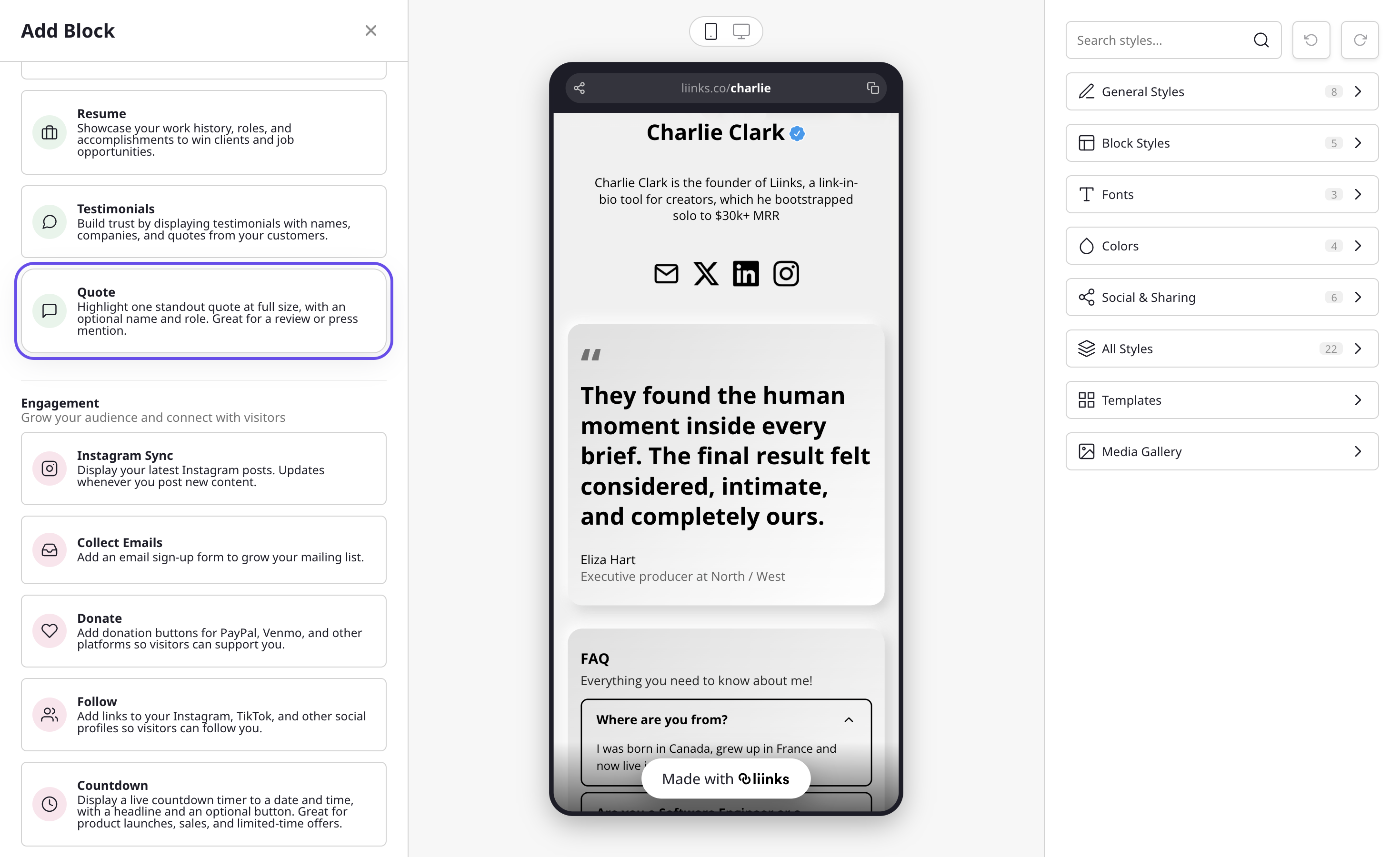
You can also find it by typing into the search box at the top of the Add Block modal. The block answers to "quote", "pull quote", "review", "praise", and "social proof".
Writing the quote
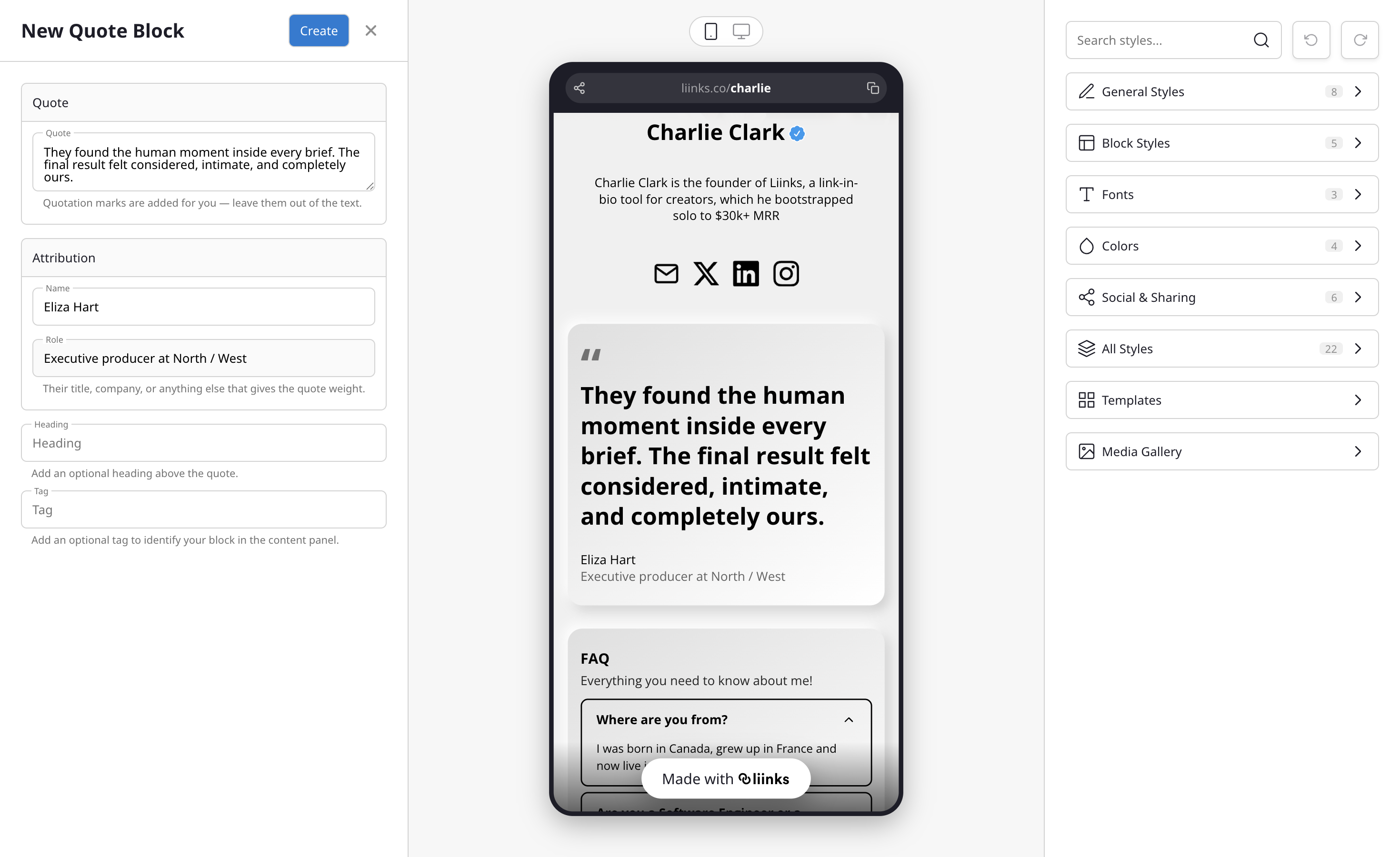
A new Quote block opens with an example quote, name, and role already filled in, so you can see the shape before you write anything. Replace them with your own.
The Quote section holds the quote itself. It is the only field the block needs: leave everything else blank and the quote stands on its own.
Leave the quotation marks out of the text. The block draws its own, so typing one yourself leaves the quote with a doubled mark at the start.
Adding the attribution
The Attribution section is what turns a nice sentence into proof:
- Name: who said it, such as "Eliza Hart".
- Role: their title, company, or anything else that gives the quote weight, such as "Executive producer at North / West" or "Verified customer".
Both are optional, and you can use one without the other. A role on its own works well when the person would rather not be named.
The heading and the tag
Two more optional fields sit below the attribution:
- Heading: a line of text above the quote, such as "What people say" or "In the press". Leave it blank and the quote is the first thing visitors see.
- Tag: a private label that names the block in your content panel. Visitors never see it. If you leave it blank, the block is listed under its heading, or under the first words of the quote when there is no heading.
How it looks for visitors
On your public page, the quote sits in a single card with a large quotation mark above it and the name and role in smaller text underneath. The card picks up your page's colors, borders, corner radius, and fonts, so it matches the blocks around it without any styling of its own.
The preview beside the editor updates as you type, so you can check the line breaks before you save.
Quote or Testimonials?
Both blocks show what other people say about you, and they are built for different moments:
- Use Quote when you have one line worth reading at full size. It is one quote, big, with no avatar and no link.
- Use Testimonials when you have several. That block stacks smaller attributed cards, each with an optional headshot and an optional link to the original review.
If you have a favourite quote and a handful of others, the two work well together: lead with a Quote block, then follow it with a Testimonials block for the rest.
Tips
- One or two sentences is the sweet spot. A paragraph set at quote size stops being a quote and starts being a wall.
- Cut the quote down to the part that actually lands. Trimming the throat clearing at the start is fair, changing the meaning is not.
- Specific beats glowing. "She rebuilt our checkout in a week" does more work than "amazing to work with".
- Name and role together are worth more than either alone: they let visitors place the quote.
- Ask before you publish someone's words, especially if you are naming them and their company.
- Put the quote just above the thing you want people to do, then follow it with a Link or Form block so they can act while it is still in mind.