The Link block is the most common block type on Liinks. At its simplest it's a button that takes visitors somewhere, but it can point to more than just web pages, and it can be styled in many different ways.
How to add a Link block
- In your admin, open the page editor and click Add Block.
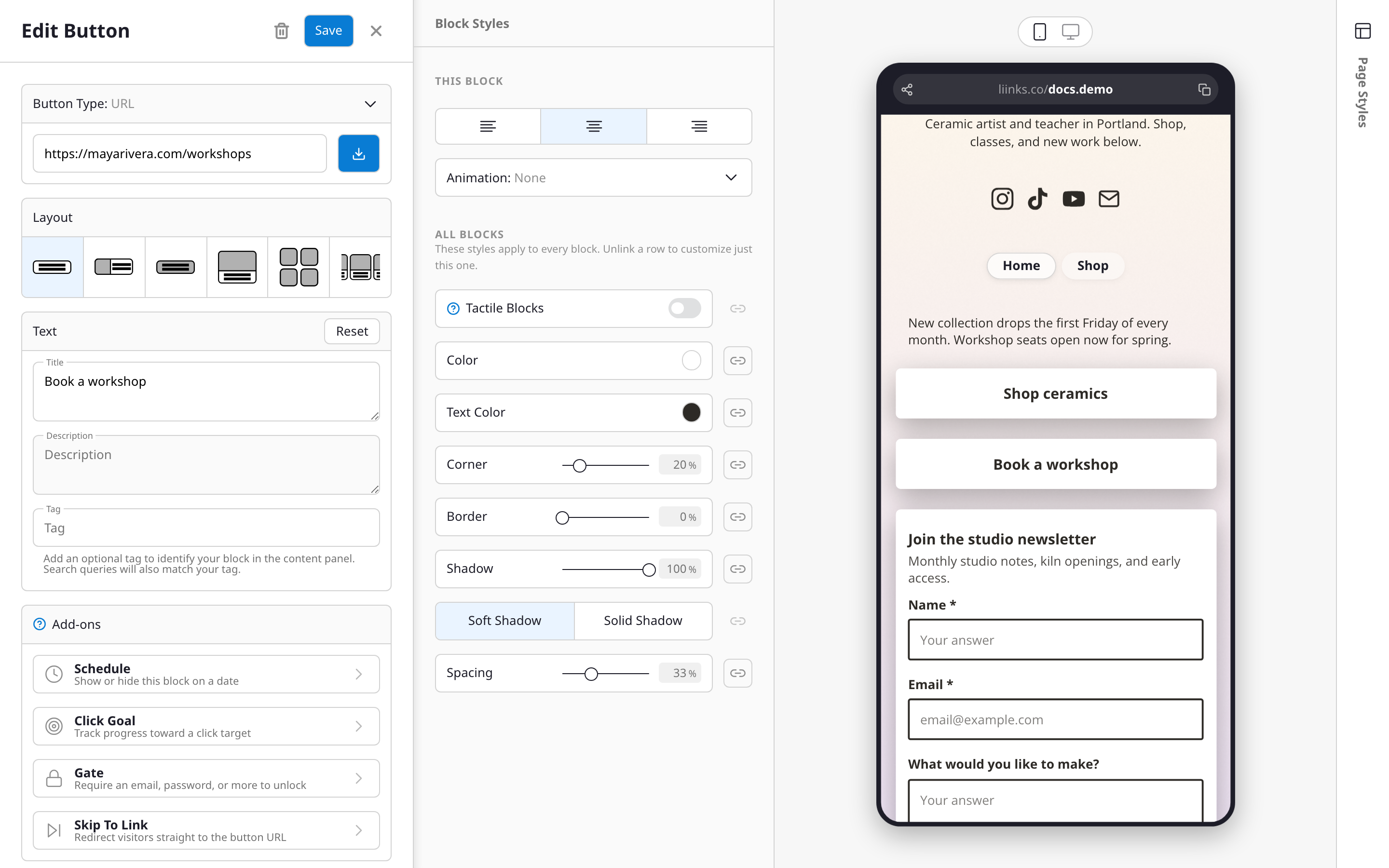
- Choose URL (it's in the Popular row at the top), or paste a link straight into the search box and Liinks will pre-fill the title, description, and image for you.
- Give the block a Title, an optional Description, and set where it points.
If the pre-filled title or image comes back blank or wrong, see Link Previews.
What a link can point to
- URL: a standard clickable link that opens a webpage.
- Email: opens the visitor's email client with a pre-filled address.
- File: upload and share PDFs, images, or audio files.
- Image: display an image that opens in a lightbox when clicked. The Image section adds two options: Full bleed stretches the image edge-to-edge with no card border, and Disable click turns off the lightbox so the image is purely decorative.
- Liinks Tab: link to another tab within your Liinks page. See Multiple tabs.
Styling your links
- Layouts: links support multiple layout styles including buttons, thumbnails, grids, and carousels. See Creating a carousel for the carousel layout.
- Icons: on any layout that shows an image, you can swap the image for an icon, an emoji, or a 3D icon. See Link icons and 3D icons.
- Animation: draw attention to an important link with a subtle animation. See Animating content.
More things a link can do
- Schedule it: publish or unpublish the block automatically at a date and time you choose.
- Set a click goal: track progress toward a target number of clicks. See Click goals.
- Gate it: require an email, a code, or a payment before the destination unlocks. See Creating a gate.
- Skip to it: send everyone who visits your page straight to this link instead of showing your page. See Skip To Link.