The Marquee block is one line of text that scrolls across your page and never stops. It can ride a colored ribbon that waves as it travels, or run as plain text straight on your background. Use it for a tagline, a motto, a list of the services you offer, or anything you want moving on the page while everything else sits still.
It is a decorative block. It holds no link and asks nothing of visitors, which is exactly why it works between two sections that do.
How to add a Marquee block
- Open the page editor and click the Add + button above your blocks list.
- Find Marquee under Tell my story.
- The Marquee editor opens on the side, with a live preview of the block next to it.
You can also find it by typing into the search box at the top of the Add Block modal. The block answers to "marquee", "ticker", "scrolling", "banner", "ribbon", "wave", and "moving text".
A new Marquee block arrives with an example phrase already scrolling, so you can see how the options behave before you write your own.
The text
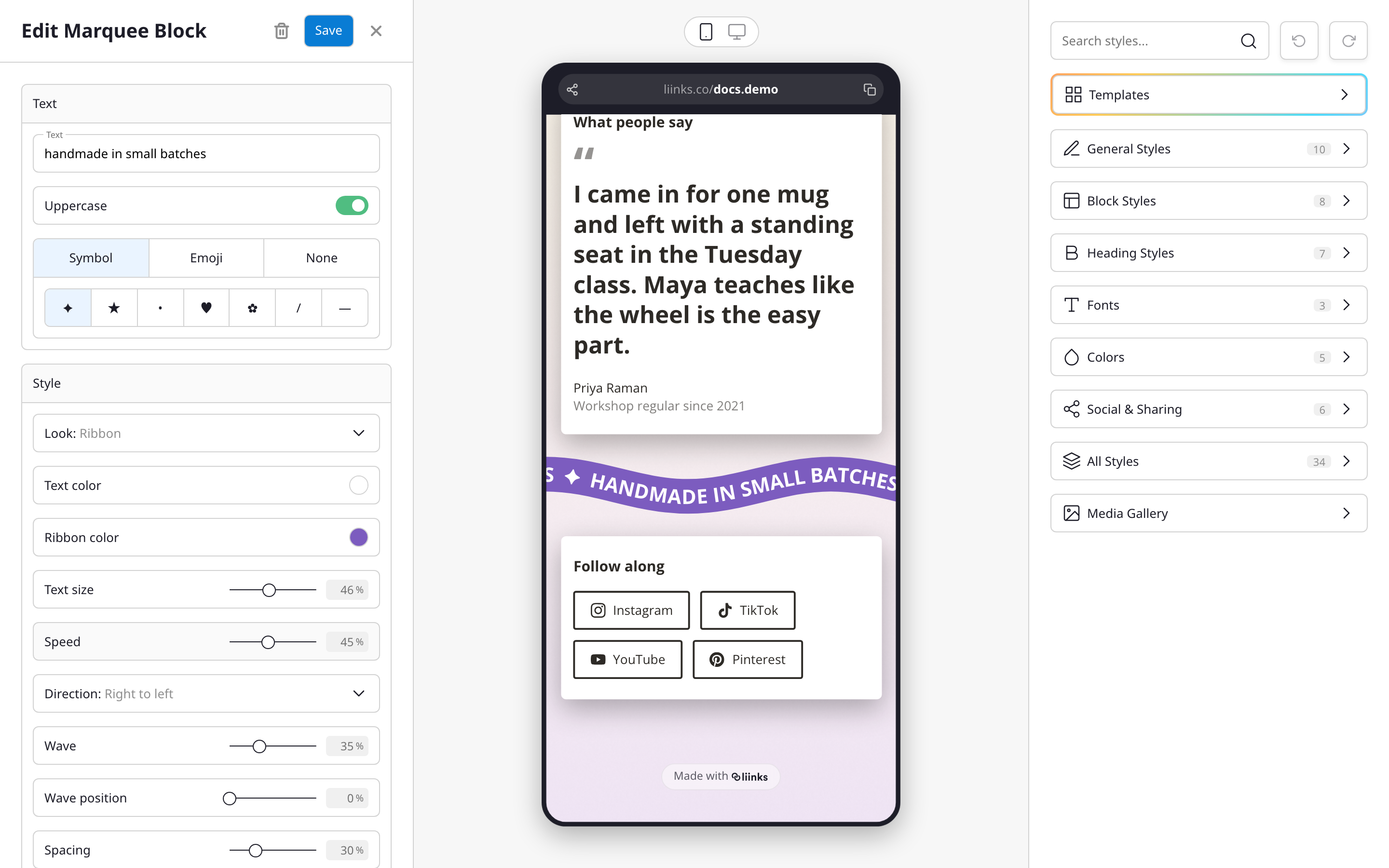
The Text field holds the phrase that repeats. It is the only thing the block needs: a marquee with no text renders nothing at all, so the block stays invisible to visitors until you write something.
Keep it short. The phrase repeats end to end across the page, so a few words read as a pattern while a full sentence reads as homework. Taglines, service lists, and opening hours all work well.
Uppercase sets the phrase in capitals without you having to type it that way, which suits the ribbon look.
The separator
The separator is the mark that sits between one repetition and the next, so the phrase does not run into itself. You have three choices:
- Symbol: a sparkle, star, dot, heart, flower, slash, or dash.
- Emoji: anything you like, which is the quickest way to make the block feel like yours.
- None: no mark at all. Best paired with generous spacing in the phrase itself.
Look and color
Look switches between the two styles:
- Ribbon draws a colored band behind the text, and the band waves along with it. This is the default and the more decorative of the two.
- Plain text drops the band and scrolls the words straight on your page background.
Text color sets the words. Ribbon color sets the band, and only appears when the Ribbon look is selected.
The marquee carries its own colors rather than borrowing your button colors. A scrolling band is doing a different job from a row of buttons, and the color that suits one rarely suits the other. If you want it to blend in, set the ribbon to a color already in your theme; if you want it to interrupt, pick something that is not.
Motion
Four controls shape how the text moves:
- Text size sets how big the words are. Everything else scales with it, so resizing zooms the whole marquee rather than reshaping it.
- Speed runs from a slow crawl to a fast whoosh. The slider gives as much room to the slow end as the fast one, because that is where the difference is easiest to see.
- Direction sends the text right to left, the way a classic ticker runs, or left to right.
- Wave decides how far the text rises and falls as it travels. At zero it runs in a straight line. Turn it up and the ribbon rolls.
Once the wave is above zero, a Wave position control appears. It moves the wave along without changing its shape, which is how you stop a crest from landing awkwardly at the edge of the page, or how you offset two marquees so they do not wave in unison.
Spacing
Spacing sets the room above and below the block, in place of the spacing your page uses between normal blocks. A waving band needs different breathing room than a stack of cards, so this one block gets its own control. Turn it down to tuck the marquee tight under a heading, or up to let it sit on its own.
The tag
Tag is a private label that names the block in your content panel. Visitors never see it. Leave it blank and the block is listed under its own phrase, which is usually what you want.
How it looks for visitors
The marquee spans the full width of your page, edge to edge, rather than sitting inside a card like most blocks. It starts moving as soon as the page loads and loops forever with no seam.
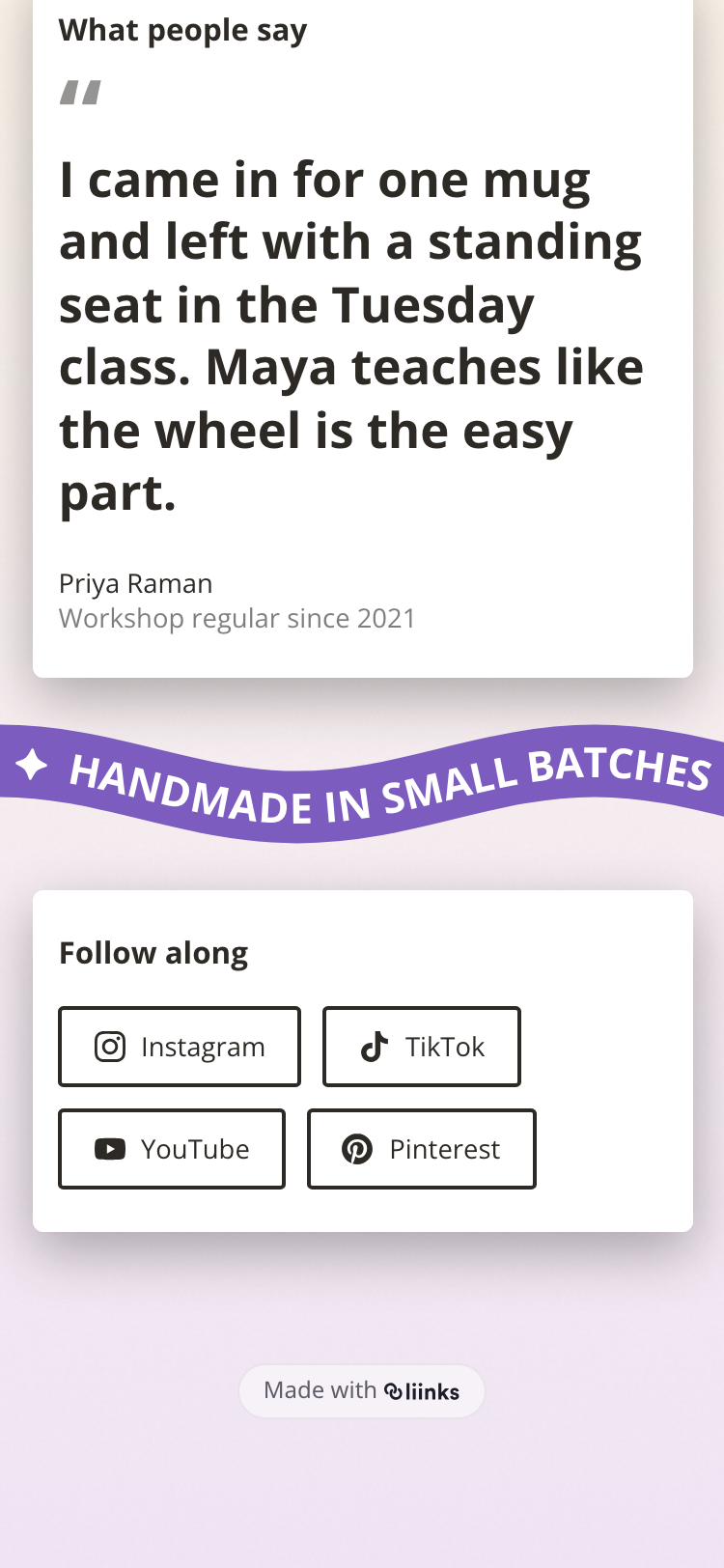
The preview beside the editor runs at the real speed, so what you see while you set it up is what visitors get.
Tips
- One marquee per page is usually plenty. Two moving bands compete with each other, and with everything you actually want clicked.
- Put it between sections rather than at the very top. A tagline that scrolls past your name reads as a signature; a marquee above everything reads as an advert.
- Slower than you think. The speed that feels right while you are staring at the editor is often too fast for someone reading it once on a phone.
- If the text is hard to read, the problem is usually the wave rather than the speed. Take the wave down before you slow it further.
- Pair a subtle marquee with a Heading above it to label a section, or drop one under your header as a standing tagline.