Your page starts with a single tab called Home, and you can add more: a Shop, an About, an Events tab, whatever fits your content. Tabs keep a content-rich page organized: instead of one long scroll, visitors switch between focused sections.
Where to find your tabs
Open the editor and look at the top of the Content sidebar. The Tab selector shows which tab you are currently editing, starting on Home.
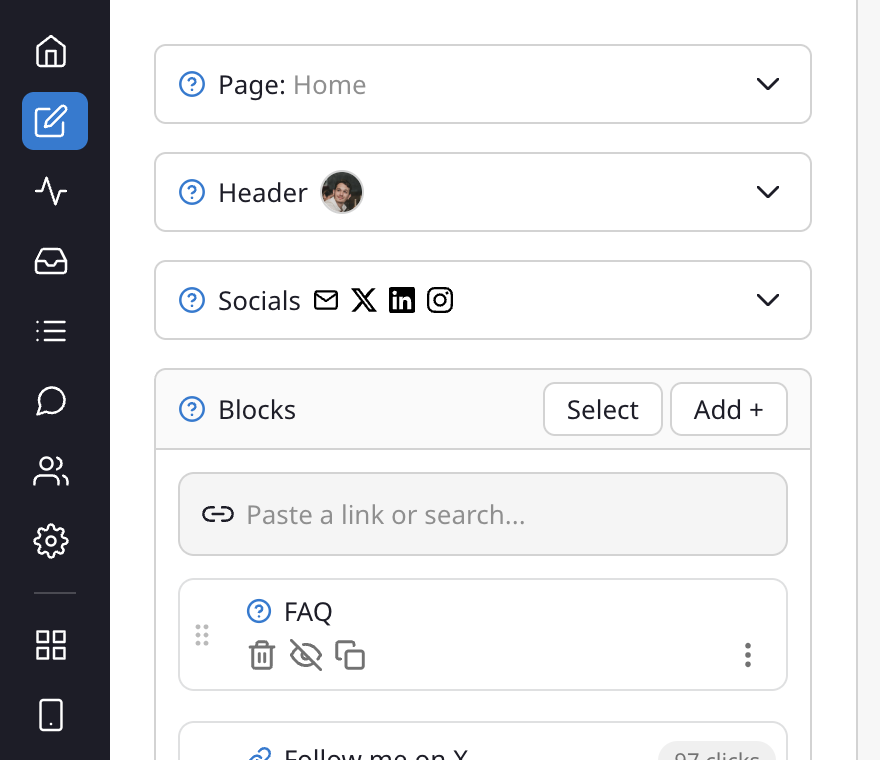
Everything below the selector, your Header, Socials, and Blocks, belongs to the tab you have selected. Switching tabs in the selector changes which tab you are building.
You can also reach your tabs straight from the live preview: hover over your header (your name, bio, or profile picture) to open its quick-edit menu, then choose Add a Tab or Manage Tabs.
Add a tab
- In the editor, open the Tab selector at the top of the Content sidebar.
- Choose Add New Tab +.
- Give your new tab a name and confirm. Names must be unique.
Your new tab starts empty, so you can add blocks, a header, and styles to it just like your Home tab. Switch back to any tab at any time using the Tab selector.
Manage your tabs
Once you have more than one tab, a Manage button appears next to the Tab selector. Click it to open Manage Tabs, where every tab is shown as its own card.
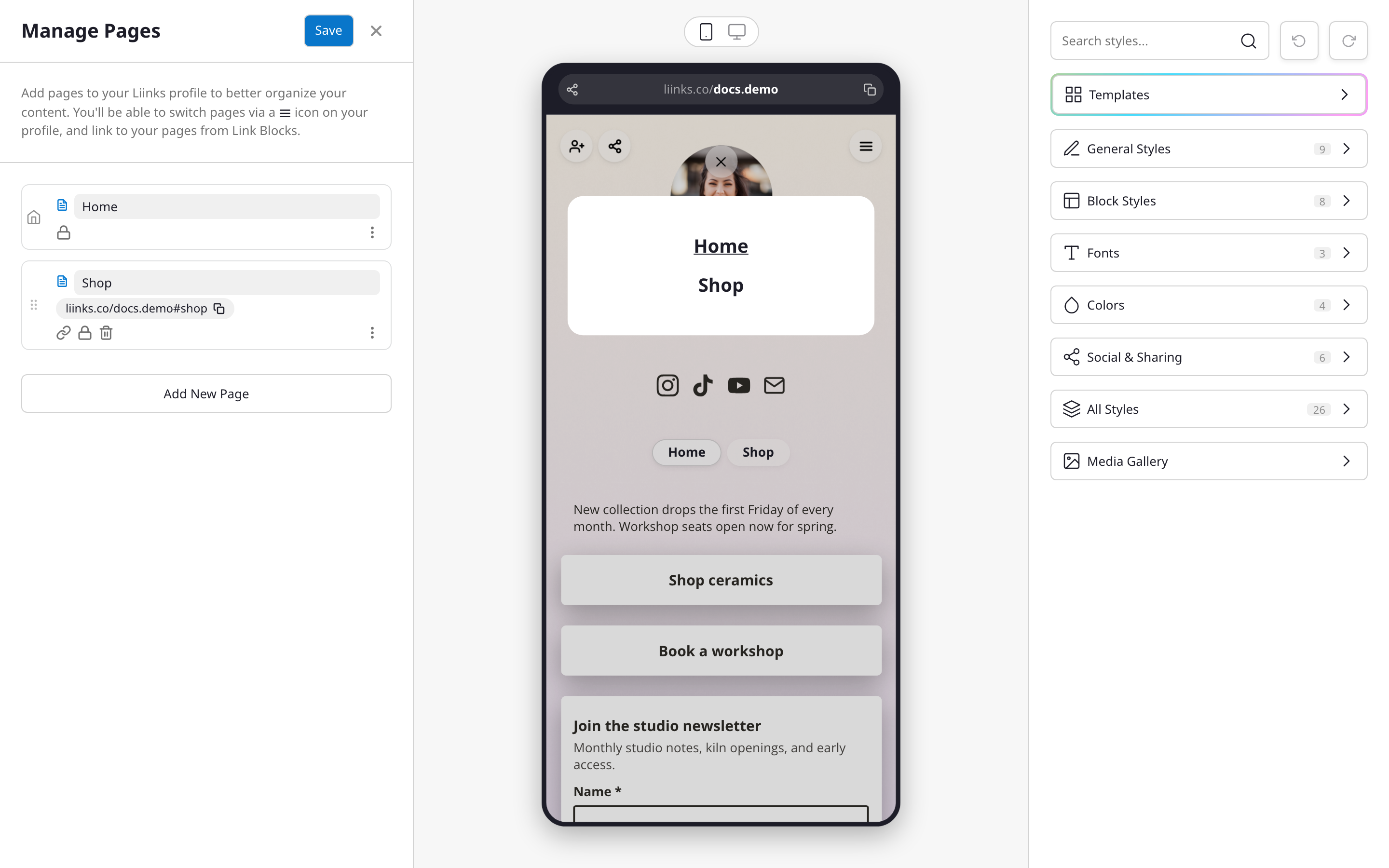
From here you can:
- Reorder tabs by dragging a card up or down using the handle on the left. The order you set here is the order visitors see in your menu and tabs. Your Home tab always stays pinned to the top.
- Rename a tab by clicking its name and typing a new one.
- Set a Tab URL so the tab has its own readable web address.
- Copy a tab's direct link. Every tab beyond Home gets its own shareable URL, like
liinks.co/yourusername#shop, so you can link straight to a specific tab from anywhere. - Add a gate to require a password or an email before a visitor can view that tab. See Gating Links and Tabs.
- Delete a tab you no longer need.
Each of these actions is available both as a quick icon on the card and in the three-dot menu on the right.
Adding content to a tab
Each block lives on one tab. Use the Tab selector to switch which tab you're editing, and blocks you add go to the tab you're currently on. You can also create a Liinks Tab link block that jumps visitors from one tab to another. See Block types.
What visitors see
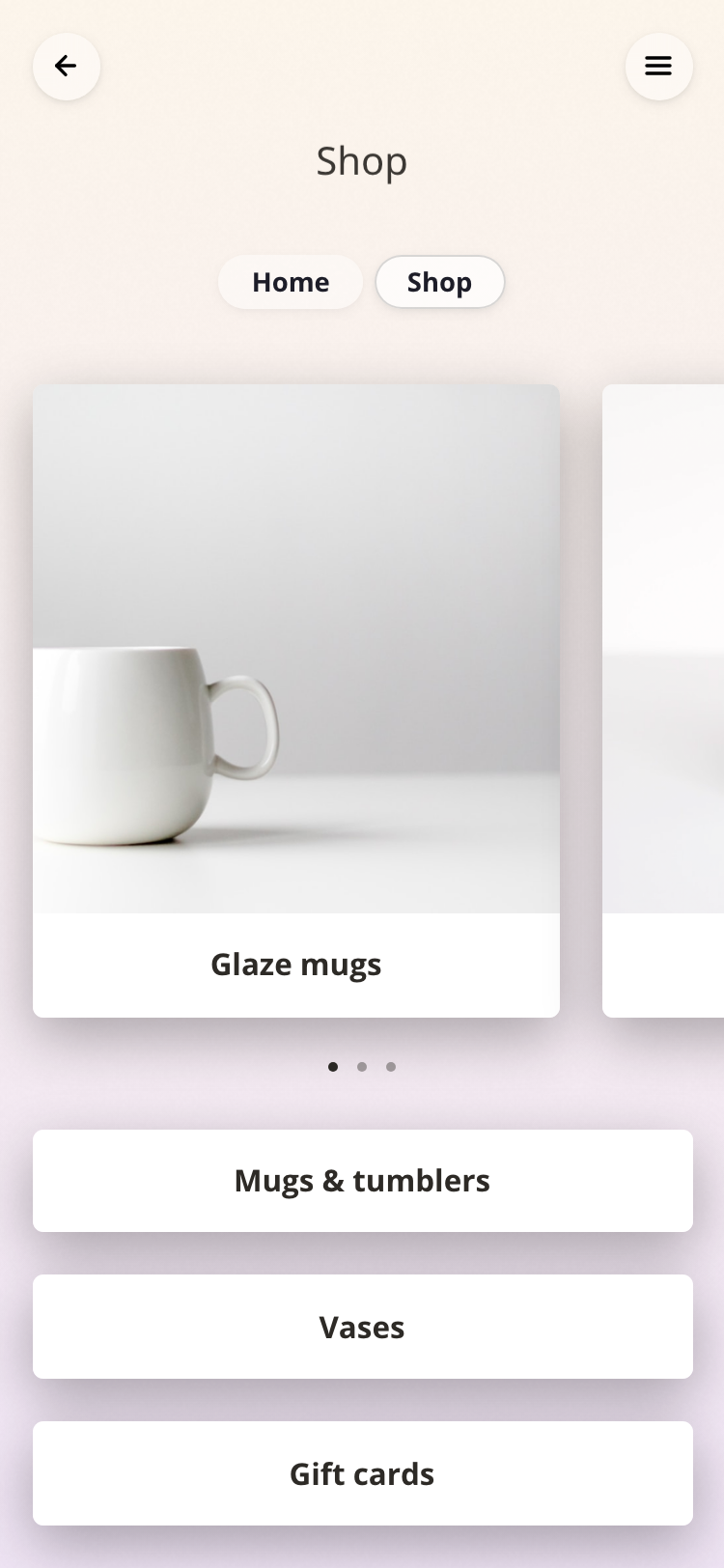
By default, visitors switch between tabs using the menu icon on your page. If you'd like your tabs to be more visible, turn on Show Tab Navigation in Design > General Styles to display them as a row near the top of your page. This option appears once you have at least two tabs. See Design options for more.
Tab switching is instant, so visitors stay on your page the whole time.