Most people build their profile on a phone, so the editor is built to work there. Nothing is desktop only. This article covers the parts that work differently on a small screen.
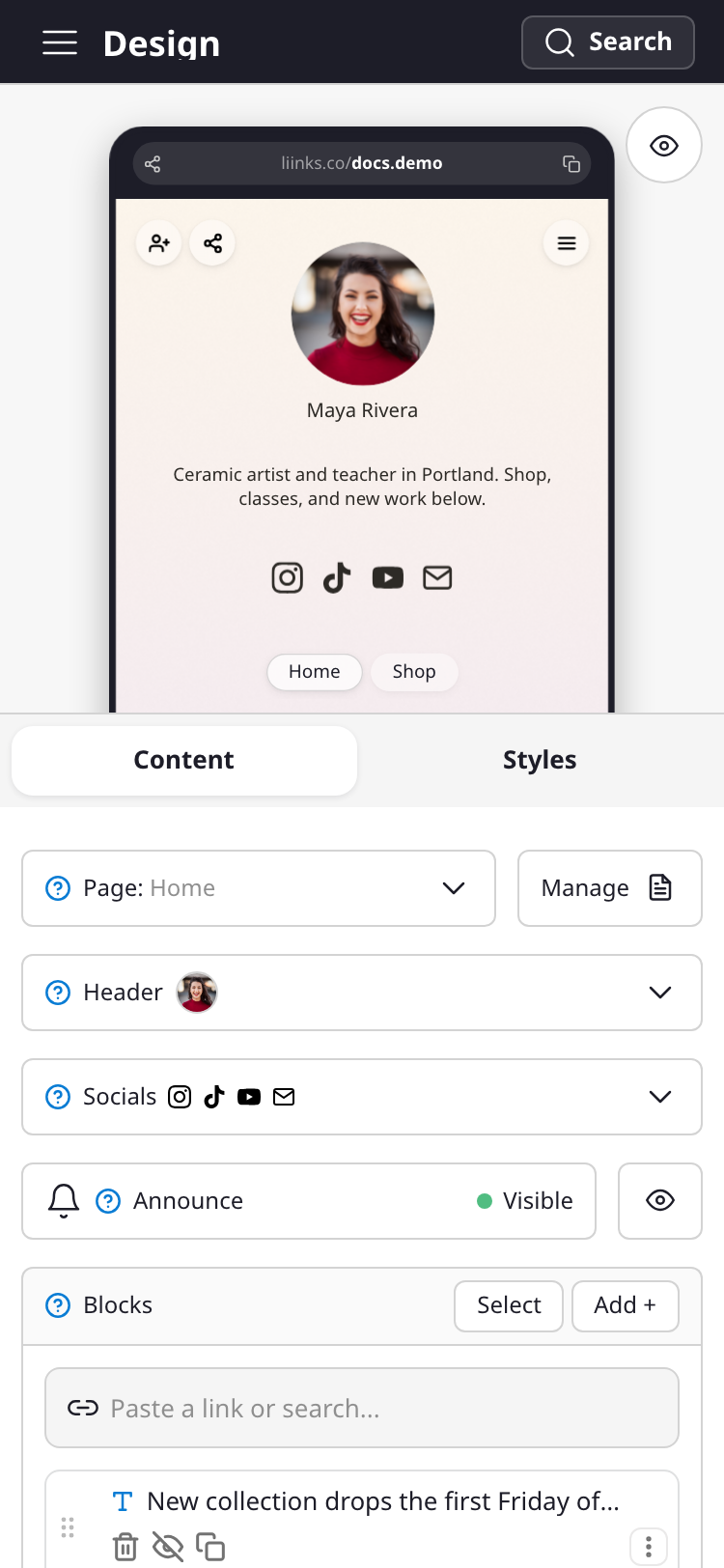
Getting around
The bar across the top of the editor shows where you are. Tap the menu icon or the page name beside it to slide out the navigation, which is the same list of sections you get from the sidebar on a computer: Home, your pages, Analytics, Audience, Settings, and the rest. Tap anywhere outside the panel to close it again.
The search button on the right of that bar opens the same search you get with Command K on a desktop. It finds settings, sections, and your own blocks by name, which is usually faster than navigating to them.
Tap a block in the preview to edit it
The phone preview at the top of the editor is not just a picture of your profile. Tap any block in it and that block's editor opens. It is the quickest way in: you see the thing you want to change, you tap it, you change it.
Two details worth knowing:
- Taps in the preview mean edit, not open. Tapping a button block in the editor preview will not follow its link or open its lightbox. To try your links out for real, use preview mode below.
- Tapping the empty background of the preview does nothing on purpose. The preview is something you watch while you type, and dismissing your work with a stray thumb would be far too easy.
Switching between blocks
With an editor already open, tapping a different block in the preview switches straight to it. Tapping the block you are already editing does nothing, since there is nowhere to switch to.
If you have unsaved changes, you will get the usual prompt asking whether you want to close. Cancel it and you stay exactly where you were, with your edit intact.
Your header and social icons
Your profile photo, display name, and bio are not blocks, so they open a little differently. Tap the header area at the top of the preview and the editor scrolls down to the Header section, opens it, and highlights it. Tap your row of social icons and you get the Socials section the same way.
Preview mode
The round eye button beside the preview expands it to fill the screen. This is the mode to use for checking your work: the editor gets out of the way, and every link, folder, and page switch behaves exactly as it does for a visitor. Tap the button again to shrink back to the editor.
Adding photos
Image fields accept photos straight from your camera roll, including the HEIC files an iPhone takes by default. WebP and AVIF work too. Liinks converts anything that needs converting before it uploads, so there is nothing to do on your side beyond picking the photo.
To replace or clear a photo you have already added, tap the remove button in the corner of the image. On a touch screen it stays visible rather than waiting for a hover that will never come.