The Discount Code block shows a code as a card that looks like a coupon: the brand and the discount on top, then the code with a Copy button underneath. Visitors copy the code with one tap and open the offer with another, and you can see how many people copied it.
Use it for affiliate and partner codes, a discount on your own shop or services, or any short text visitors need to copy, like a payment handle. It replaces the old habit of typing "use code SAM15" into a button title, where visitors had to retype the code by hand.
How to add a Discount Code block
- Click Edit page in the sidebar, then click Add block above your blocks.
- In the Add block picker, find Discount code under the Share resources filter.
- The editor opens on the side, with a live preview of the card next to it.
You can also type into the search box at the top of the picker. The block answers to "discount", "coupon", "promo code", "affiliate", "offer", and "sale".
Until you add a brand or a code, the preview shows a sample card so you can see the layout.
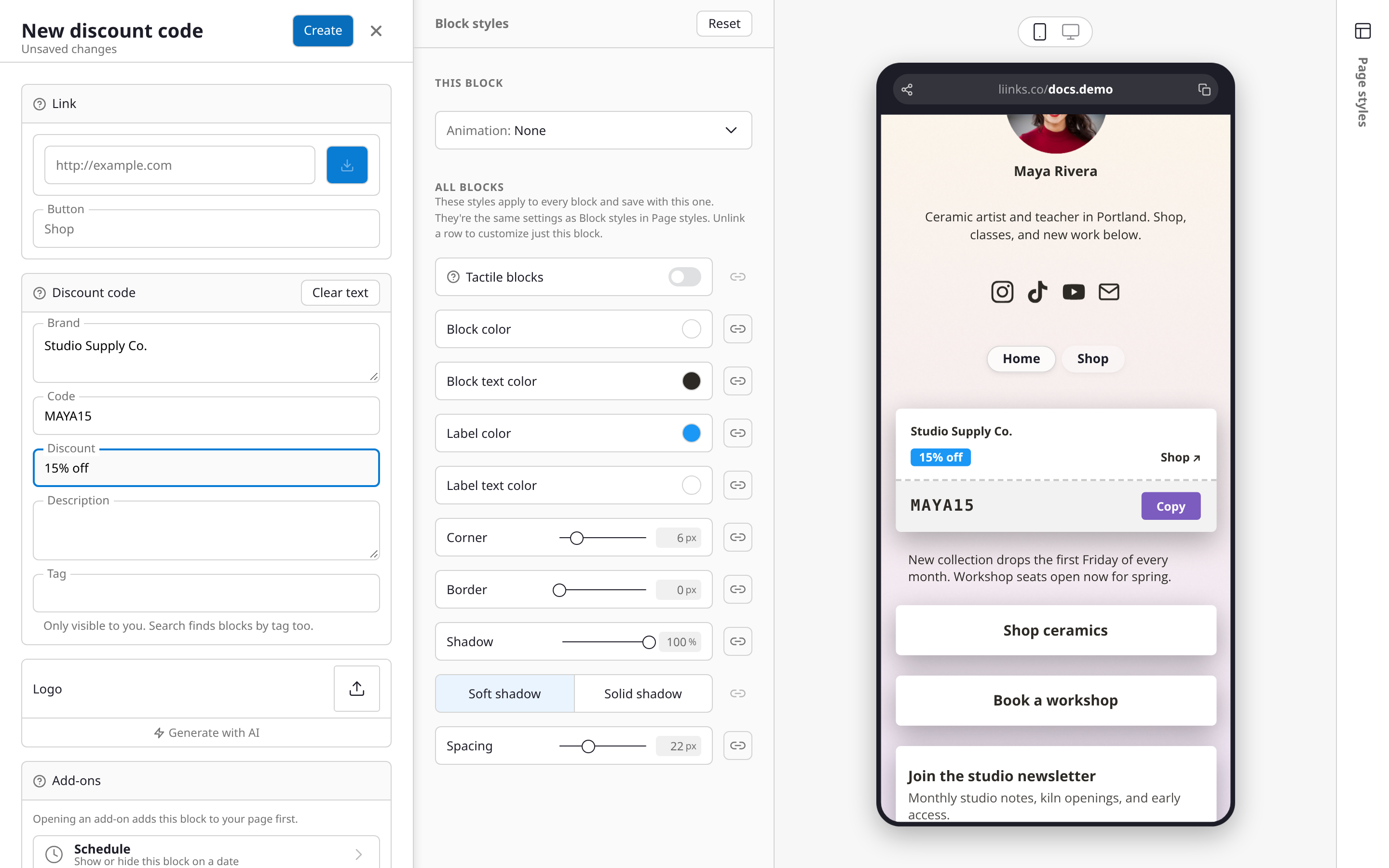
The link
The Link section comes first. It's optional.
- Paste the address of the shop or offer page, such as your affiliate link. If the brand, description, and logo are still empty, Liinks reads the page's link preview and fills them in. Edit or clear anything it fills in. If nothing comes back, see Link Previews.
- Button sets the words on the card's open cue. Leave it blank and it reads "Shop".
- Leave the link empty for a code to copy with nothing to open.
The link has to be a web address. Email, file, and tab links aren't options on a discount code.
The code
The Discount code section holds what the card shows:
- Brand: who the offer is from, such as "Northwind Coffee". It's the card's title.
- Code: what visitors copy, such as "SAM15". Codes can be up to 40 characters. Leave it blank for an offer that needs no code, and the card says "No code needed" in its place.
- Discount: a short badge such as "15% off" or "Free shipping".
- Description: a line under the brand, such as "Use my code at checkout".
- Tag: a private label for the block. Only you see it, and the search in your editor finds blocks by tag too.
A card needs a brand, a code, or both. Clear text at the top of the section empties the text fields in one go.
Below the section, Logo adds a small image beside the brand. Upload the brand's logo, or keep the one filled in from the link.
Colors and style
The card takes its look from your page's block styles: the card uses your block color, text color, border, corners, and shadow, the discount badge uses your label colors, and the Copy button uses your button colors. That way it fits whatever theme you're on.
To change the look of just this block, open Block styles. On a wide screen it sits beside the editor; on a smaller one it's a row near the bottom of the editor.
Several codes in a row
Place discount codes one directly after another and visitors swipe through them sideways, with the cards lined up at the same height. A single code on its own spans the full width, like any other block.
How it looks for visitors
- The top half of the card is the offer: the logo, brand, description, the discount badge, and a "Shop ↗" cue when the card has a link. Tapping anywhere on it opens your link in a new tab.
- Below a dashed line, like a tear-off coupon, the code sits in a bar with a Copy button. Tapping anywhere on the bar copies the code, and the button changes to Copied.
- The words the card adds on its own (Copy, Copied, Unlock, No code needed, and the default Shop) follow your page's language. What you type stays exactly as you typed it.
Copying is built to work in the browsers inside apps like Instagram, and if a browser still refuses, visitors can select the code by hand.
Copies and clicks
The block counts two things separately:
- Copies: each time a visitor copies the code. The count appears as a badge on the block in your blocks list, such as "12 copies". Hover over it to see that it's an all-time total. Copies are only shown on that badge, not in your Analytics.
- Clicks: each time a visitor opens your link from the card. These work like any other block's clicks: they appear in your Analytics and as a clicks badge on the block.
Copies and clicks you make in the editor's preview aren't counted.
Hiding the code behind a gate
You can ask visitors for something before they see the code, such as their email address. Add a gate to the block: open Gate under Add-ons at the bottom of the editor, or choose Gate from the block's action menu in your blocks list.
On a gated card:
- The code shows as dots, and the button reads Unlock.
- Tapping the code bar or the offer opens the gate.
- When the visitor passes the gate, the card reveals the code instead of sending them off to the shop, so they can copy it first.
- From then on, the card works as normal for the rest of their visit.
Tapping Unlock doesn't count as a click on the offer. An Email gate adds everyone who unlocks the code to your subscribers, which turns a discount code into a simple way to grow your list.
Tips
- Put the discount in the badge and keep the description to one short line. The card reads best when the code is the star.
- Codes expire. Use Schedule under Add-ons to hide a code on the day it ends.
- Label a row of codes with a Heading such as "My discount codes", so visitors know what they're swiping through.
- A card with no link works for anything visitors only need to copy, like a referral code for an app. Leave Discount empty too when there's no discount to show.