
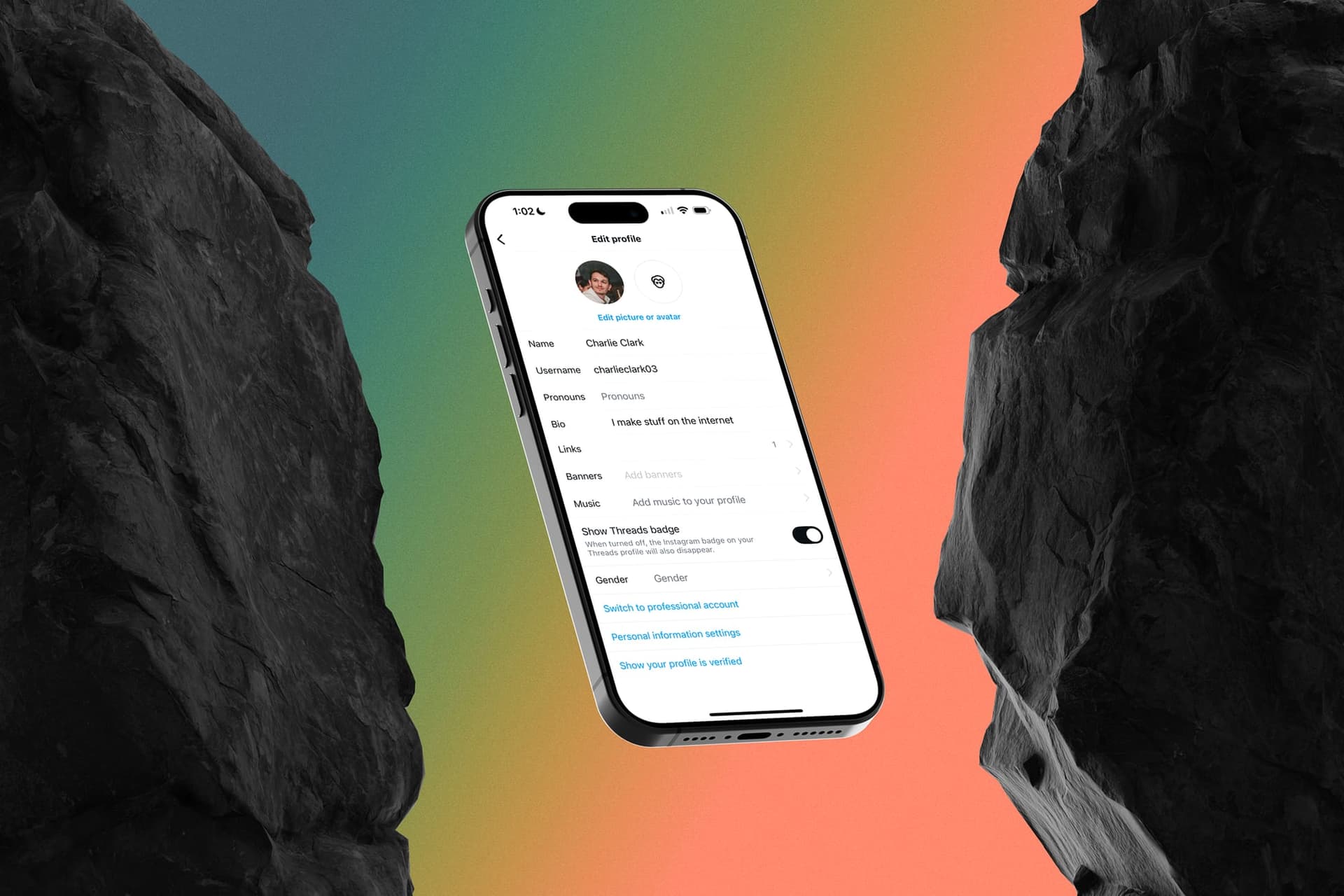
To change a link in your Instagram bio, open the Instagram app, go to your profile → Edit profile → Links, and tap the link you want to change. Edit its URL or Title, then save with the checkmark or Done button. Return to your profile and tap the link to test it.
Instagram supports up to five profile links. You manage them in Links, separately from your bio text. If you remember a Website field from an older guide, this is the screen to look for now.
The screenshots below show the Liinks account in Instagram's iPhone app on September 6, 2026. Menu labels can differ by app version: our account shows Add link, while Instagram's Help Center calls it Add external link.
How to change an existing Instagram bio link
1. Open your profile, then Edit profile
Open Instagram on your phone and tap your profile picture in the bottom navigation. Check the username at the top if you manage more than one account, then tap Edit profile.
2. Open Links
Tap the Links row. The number beside it tells you how many links you have added.
3. Choose the link and edit its URL or title
Tap the existing link. On the Edit link screen:
- URL is the destination that opens when someone taps the link. Paste the full address, preferably starting with
https://. - Title is a readable label, such as “Book an appointment” or “Shop the new collection.” Use wording that matches the destination.
Replace the address to change where the link goes. Change the title if you only want a different label.
4. Save and test the destination
Tap the checkmark or Done in the upper-right corner. Go back to your profile, open the link, and check that it reaches the intended page inside Instagram's browser. If you have several links, open the list and test the one you edited.
Changing an Instagram profile link does not change the address of your website. Copy the destination URL from the page you actually want people to visit.
How to add a link to your Instagram bio
- Go to your profile → Edit profile → Links.
- Tap Add link or Add external link, depending on your app version.
- Paste the destination into URL and add a clear Title.
- Save with the checkmark or Done, then return to your profile.
- Tap the new link to make sure it works.
Repeat those steps to add another destination, up to Instagram's five-link limit. You can use a website, booking page, shop, newsletter, or a page that brings several of those together.
How to remove a link from your Instagram bio
Open Edit profile → Links, tap the link, then tap Remove link. Confirm the removal if Instagram asks, and return to your profile to check the result.
This removes the link from your Instagram profile. It does not delete the destination page or cancel a subscription to the service behind it.
How to reorder your Instagram bio links
If you have multiple links, Instagram's documented reordering flow is:
- Open Edit profile → Links.
- Open the options menu, usually shown as three dots, and choose Reorder links.
- Press and hold a link, then drag it into the position you want.
- Tap Done and return to your profile.
Put the destination that best matches your current bio call to action first. If your bio says “Book a session,” your booking link should be easy to find. On the single-link account shown in our screenshots, there is no reorder menu.
Why can't I change my Instagram bio link?
I can only see a Website field on my computer
Use Instagram's iPhone or Android app and open Edit profile → Links. Instagram's Help Center provides the website-link editing flow for its mobile apps. You can prepare the URL on a computer and paste it on your phone.
My URL appears as plain text in the bio
Add it through Links, rather than only typing it into the Bio text field. Keep the bio text for a short explanation of what visitors will find when they tap.
Instagram won't accept or save the link
First, open the destination in a normal browser. Check for a misspelled address, spaces, or a page that no longer exists. Use the direct destination URL where possible and try saving again after checking your connection and updating the Instagram app.
If Instagram displays an account restriction or a message that the link is not allowed, follow that message's review or help options. A shorter URL will not resolve an account restriction. Avoid repeatedly submitting the same rejected link.
The link opens the wrong page
Return to Links, open the entry, and check the saved URL. Copy it into a browser to see whether the website itself redirects somewhere else. When using a link-in-bio service, also check that the destination page is live and its buttons point to the right places.
Should you use Instagram's five links or a link-in-bio page?
Instagram's built-in links can be enough when you have a few straightforward destinations. A separate page becomes useful when visitors need images, context, grouped links, or a clearer route to one next action.
With Liinks, you can arrange links alongside images, videos, text, and forms; match the page to your brand; and use page-view and link-click analytics to see what people open. You can also update the content behind your Liinks URL as campaigns change.
You can build your page before subscribing. A subscription activates it, with a 14-day free trial. Check the current plans before sharing your page publicly.
If you're choosing a service, our comparison of six link-in-bio tools explains the different strengths and costs.
Give people a clear reason to tap
Once the link works, write a specific bio prompt: “See the menu,” “Browse my portfolio,” or “Join the next workshop.” The first thing visitors see after tapping should match that promise.
For a small visual accent in your bio text, try the free Instagram Fonts Generator. It creates styled Unicode text to copy and paste. Keep essential words readable, test how the characters display, and leave the URL itself unchanged. The fonts tutorial has examples and accessibility tips.