Templates are now Themes, and there are 30 of them, all new. Each one is a complete look for your page: colors, fonts, background, header layout, and block styles, designed to work together.
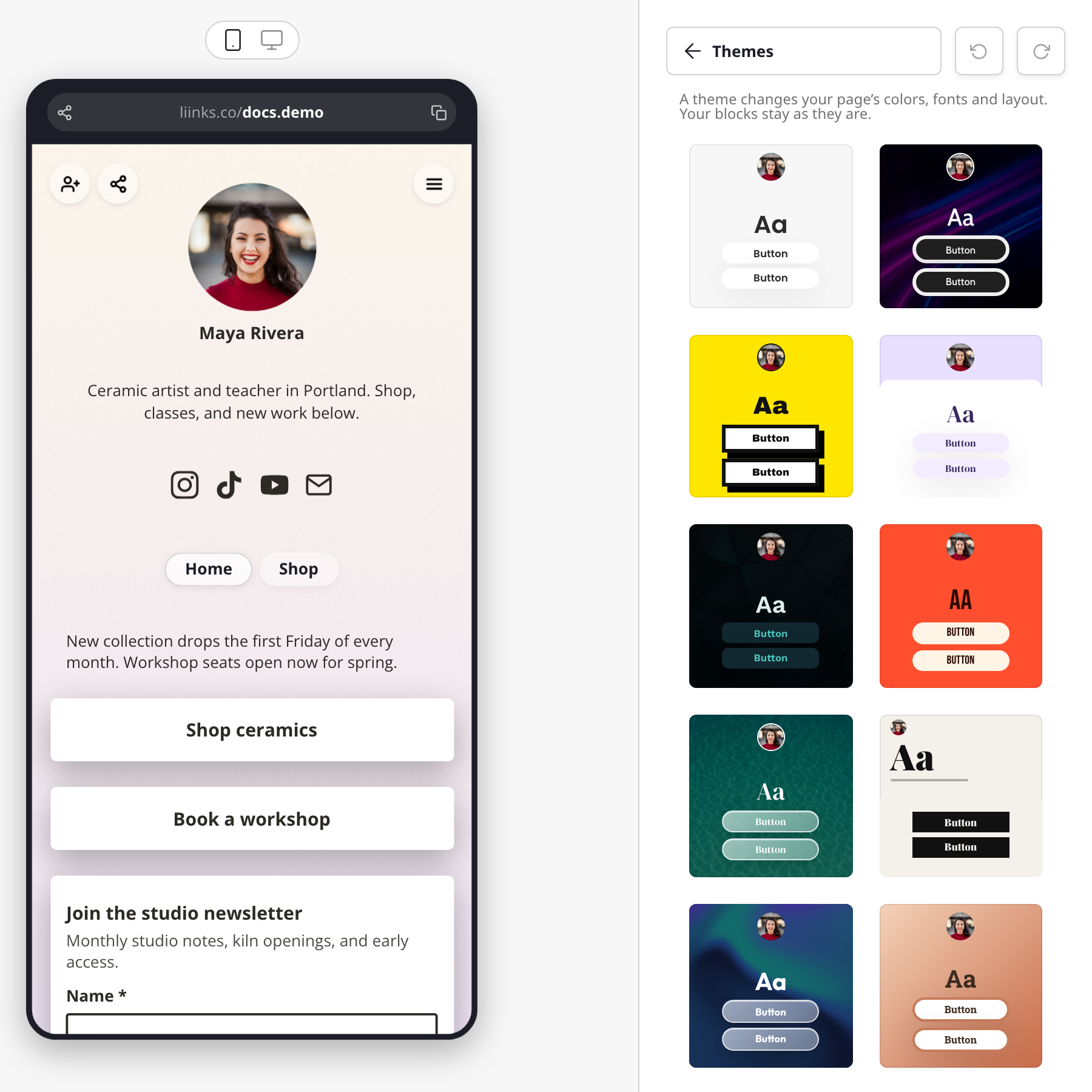
To try one, click Edit page in the sidebar, open Themes in the Styles panel on the right, and click a card. Your page restyles straight away. The range runs from clean light looks to bold color, editorial type, dark pages, and photo backgrounds.
Your blocks stay exactly as they are. A template used to swap in its own starter blocks. A theme only changes how your page looks, so your blocks, name, bio, profile picture, and logo are never touched. Switching themes is safe to do as often as you like.
Changed your mind? Applying a theme replaces the styles you had before, so use the undo arrow at the top of the Styles panel to go straight back.
Make it yours. A theme is a starting point. Adjust any color, font, or block style afterwards, and the panel keeps everything else from the theme.
Also new in the editor: color pickers for the Marquee block, the announcement bar, and link icons now show your page's own colors as swatches, so matching a block to the rest of your page is one click. The font picker gained a Display filter alongside Sans serif, Serif, and Mono.
See Design options for the full tour of the Styles panel.