Your social icons have always sat in your header, right under your name and bio. Some pages read better the other way around: links first, socials at the end. There is now a switch for it.
Open Design in your admin, look in General Styles just under Social Icon Size, and turn on Social Icons at Page Bottom. Your icon row moves out of the header and renders below your links, above the footer, with the spacing balanced on both sides so it does not look bolted on.
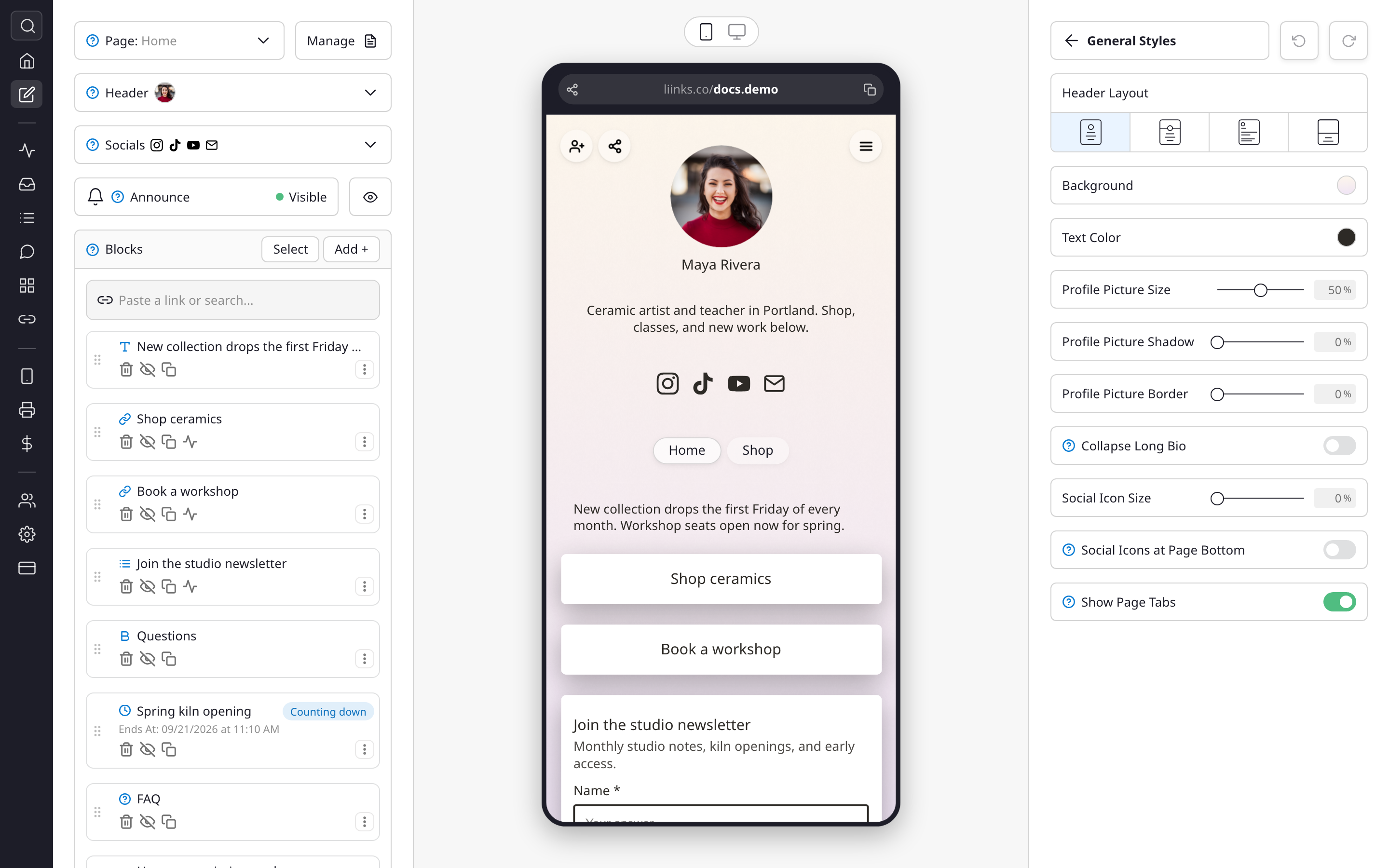
A few things worth knowing:
- The switch only appears once you have at least one social icon on your page.
- It works with every header layout, including Business.
- Nothing else changes. Your icons keep the size, order, and styling you already set, and clicks are counted the same way in your analytics.
- Your header keeps everything else, so a page with a big profile picture and a short bio can hand visitors your links sooner.
This is a page-wide setting rather than a per-block one. If you want a row of icons somewhere specific instead, for example between two groups of links, use the Social Icons block, which you can place anywhere and use more than once.
See Design options for the rest of the General Styles panel.