Your page has global styles that control the default look of every block — colors, corners, fonts, and more. You can also override any style on a single block without changing the rest of your page.
Global styles
Global styles are set in the Design tab on the right side of your admin dashboard. Any change you make here applies to every block on your page at once.
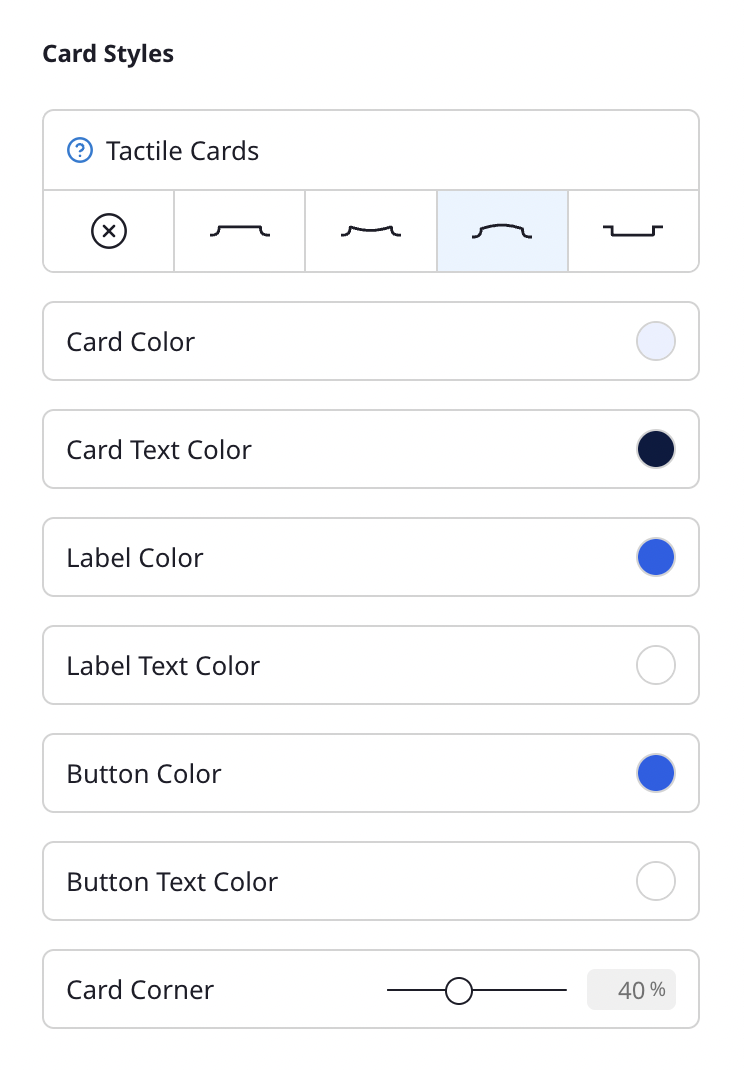
Block Styles
- Tactile Blocks — Give your blocks a physical, 3D look. Choose from Flat, Concave, Convex, or Inset effects. When Tactile Blocks is on, the block color is driven by your background color.
- Block Color — Background color of your blocks.
- Block Text Color — Text color within blocks.
- Label Color — Background color for labels on your blocks.
- Label Text Color — Text color for labels.
- Button Color — Color of call-to-action buttons.
- Button Text Color — Text color within CTA buttons.
- Block Corner — Adjust the corner radius from square to fully rounded.
- Block Border — Border thickness, from none to a heavy outline.
- Block Shadow — Shadow strength, with a choice of Soft Shadow or Solid Shadow.
- Block Spacing — How much room sits between one block and the next.
Label and button colors appear here only once your page has a block that uses them.
Fonts
- Font Pairings — Choose from preset font combinations that pair a title font with a body font.
- Title Font — The font used for your profile name and block titles.
- Text Font — The font used for descriptions and body text.
For a full list of all design settings, see Design options.
Styling a single block
Open any block and a Block Styles panel appears beside the editor. It splits every setting into two groups, so it is always clear how far a change reaches.
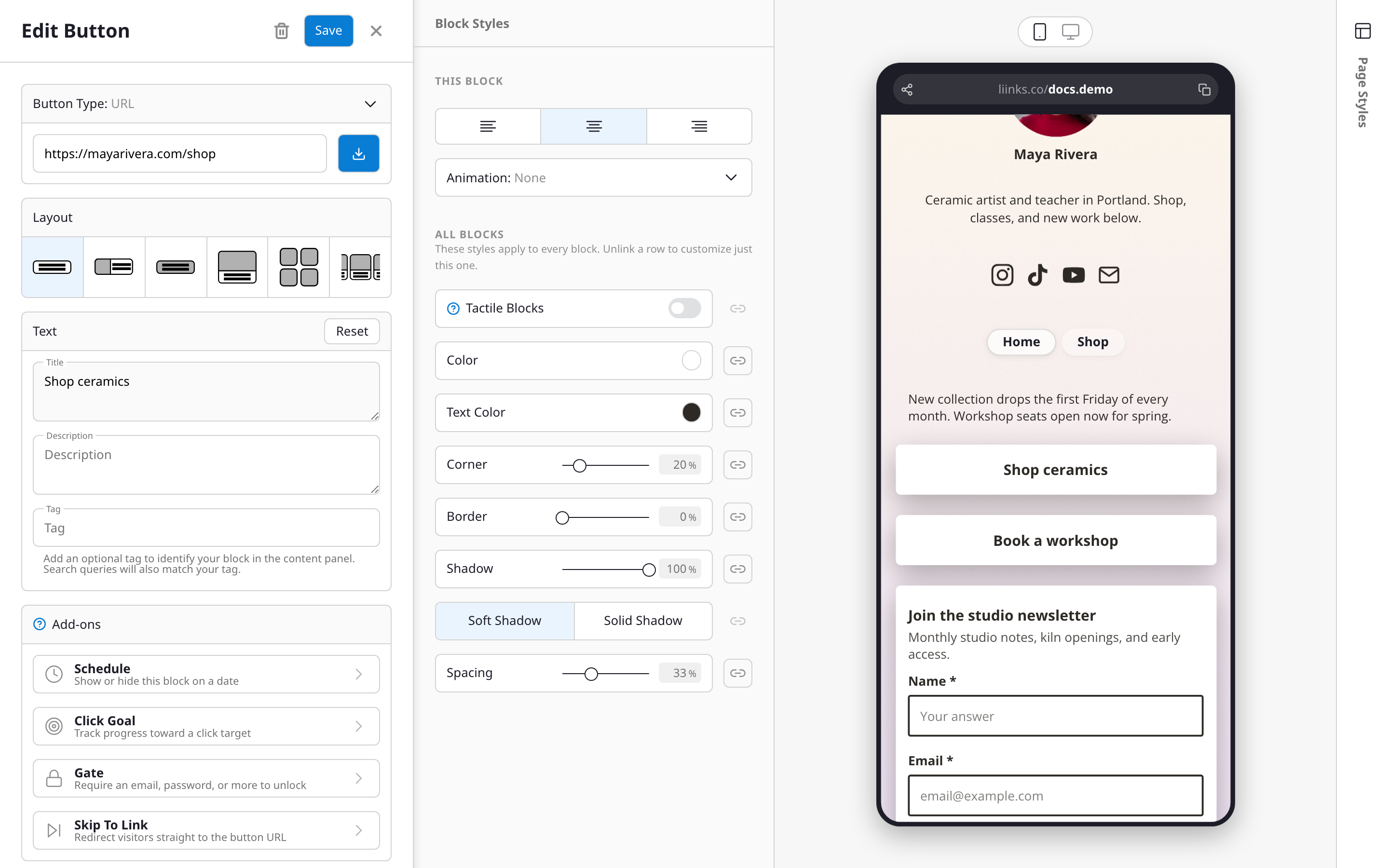
This block
Settings that only ever apply to the block you are editing:
- Size and alignment
- Animation (Shake, Pulse, Jump, Swing, and more)
- Grid columns, for blocks laid out as a grid
There is a Reset control in this group's header to clear the block's own settings.
All blocks
Your page-wide styles, mirrored from the Design panel: tactile, color, text color, corner, border, shadow and shadow style, and spacing. Each row has a chain-link beside it:
- Chain intact means the row is following your page style. Editing it changes every block on the page.
- Chain broken means this block has its own value. Editing it leaves every other block alone.
Click the chain to switch between the two:
- To give one block its own look, break the chain. The setting starts from your current page style, so nothing jumps, and you can change it from there.
- To put it back, link the chain again. The block's override is dropped and it follows your page style once more.
To make a value apply page-wide, edit the row while its chain is intact rather than unlinking it.
Saving and discarding
The whole editing session is one change set. Your edits preview live on the page as you work, and nothing is written until you press Save. Cancel backs out of everything you changed in that session, style changes included, so you can experiment on a page you care about without risk.
While you have a block open, the Design panel collapses to a rail at the side so the two cannot fight over the same settings. It comes back when you close the block.
On a phone, Block Styles is a drill-in from the block editor rather than a second column.
Text alignment
Each block can also have its own text alignment, left, center, or right, independent of every other block.
Tips
- Start with your page styles first. Set up a color scheme and font pairing in the Design tab, then break the chain on individual blocks only where you need to.
- Link a chain back to drop a block's override and return it to your page style. There is no need to match the value by hand.