How to Create Custom Backgrounds for Your Link-in-Bio Page With the Free Liinks Background Generator

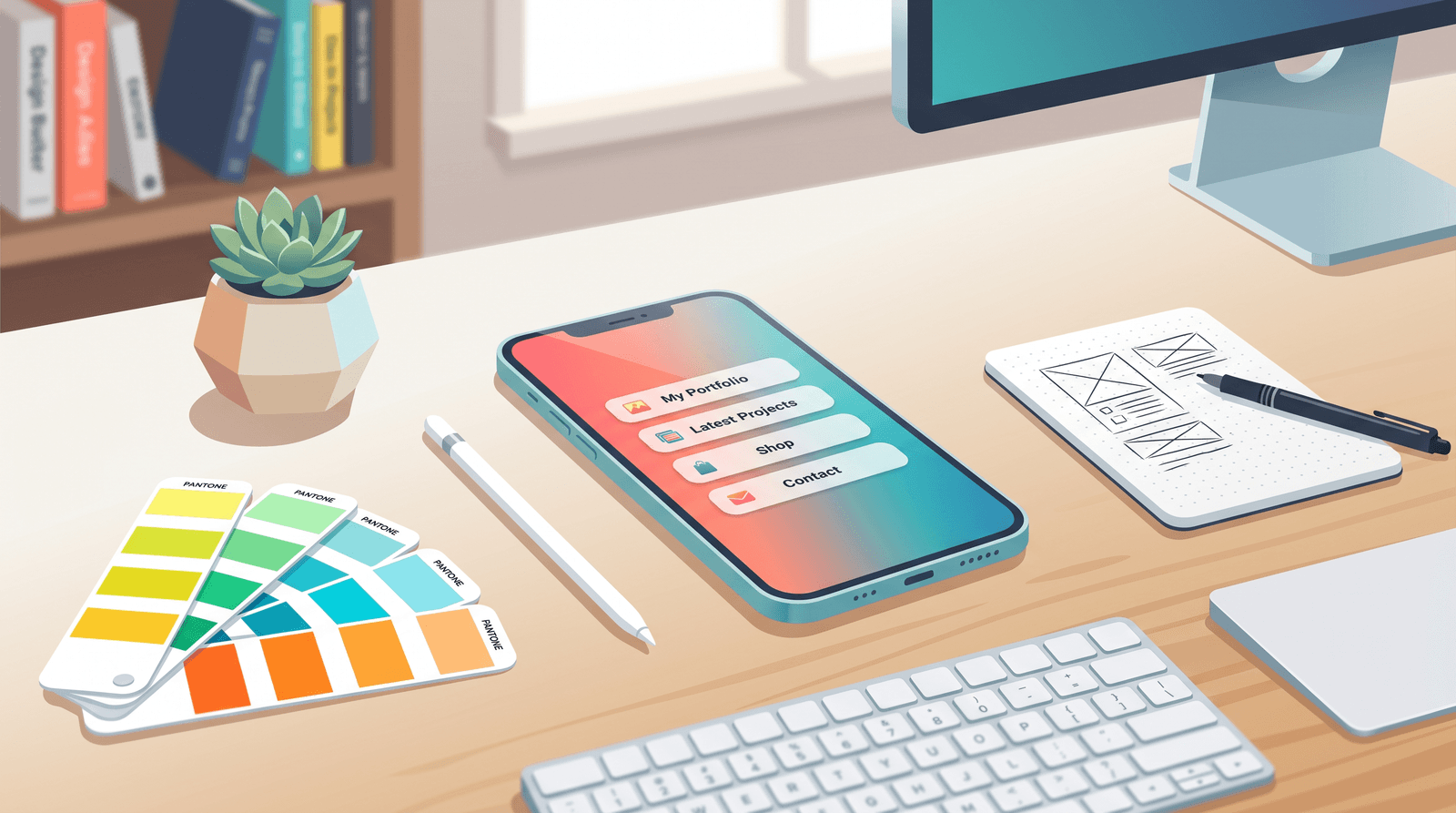
You've picked your fonts. You've written clever button copy. You've uploaded a profile photo where you actually look like a functioning human being. And yet something about your Liinks page still feels... flat.
Nine times out of ten, the problem is the background.
A default white or single-color background behind your buttons isn't bad, exactly. It's just forgettable. It says "I got this far and stopped." Meanwhile, the pages that make people pause mid-scroll — the ones that feel designed — almost always have something more intentional going on behind the content.
The good news: you don't need Photoshop, Figma, or a graphic design degree to fix this. Liinks just launched a free Background Generator that lets you create stunning, custom backgrounds right in your browser. No account required, no watermarks, no catch.
What the Background Generator Actually Does
The Background Generator isn't your typical "pick a gradient and download" tool. It uses real-time WebGL shaders — the same rendering technology behind video games and high-end motion graphics — to generate procedural backgrounds that look organic, dynamic, and impossible to fake with a basic color picker.
Here's what you get:
Six shader effects to choose from:
- Mesh Gradient — Flowing, organic color blobs. The classic animated gradient look that's been dominating design trends since 2024.
- Warp — Fluid, smoky marbled fields layered over geometric patterns like checks and stripes.
- Neuro Noise — A glowing web of fluid lines that feels futuristic and alive.
- Swirl — Bands of color twisting into spirals and flowing arcs.
- Voronoi — Cellular, stained-glass patterns with customizable gaps and glow effects.
- Metaballs — Gooey, organic shapes merging and separating in smooth motion.
Each shader comes with six hand-curated presets — themed palettes like "Sunset," "Plasma," "Glacier," and "Midnight" — so you can go from zero to polished background in a single click.
How to Create Your First Background (Under Two Minutes)
Here's the step-by-step:
1. Pick a Shader
Head to liinks.co/background-generator and browse the six shader options. Click through each one to see a live preview instantly. If you're not sure where to start, Mesh Gradient is the most versatile and works well for nearly any brand.
2. Choose an Aspect Ratio
The tool offers seven preset aspect ratios:
- Vertical 9:16 — Perfect for mobile-first link-in-bio pages
- Portrait 4:5 — Great for Instagram-sized content
- Square 1:1 — Social media posts
- Wide 16:9 — Desktop wallpapers and headers
- Banner 3:1 — Twitter/X headers and email banners
- Custom — Enter any dimensions you want, up to 8000px
For a Liinks page background, Vertical 9:16 is usually the best fit since most visitors are on mobile.
3. Start With a Preset, Then Customize
Click through the presets to find a palette close to your brand colors. Then fine-tune:
- Colors — Add, remove, and reorder colors using the drag-and-drop color picker. Use your brand's exact hex codes for a cohesive look.
- Basic controls — Adjust distortion, brightness, contrast, twist, and other shader-specific parameters.
- Advanced controls — Dial in scale, rotation, and offset for precise composition.
- Variation slider — Scrub through different frames of the animation to find the exact moment that looks best as a static image.
4. Download at the Right Resolution
Choose your export quality — 1x, 2x, or 4x — and hit "Download PNG." For Liinks page backgrounds, 2x gives you crisp results on retina screens without bloating file size.
Which Shader Should You Use? A Quick Guide
Not every shader fits every brand. Here's a cheat sheet:
Mesh Gradient — Safe bet for almost anyone. Works for coaches, photographers, lifestyle creators, and service businesses. Modern without being overwhelming.
Warp — Great for artists, musicians, and anyone with an edgier aesthetic. The marbled textures feel premium and tactile.
Neuro Noise — Perfect for tech creators, SaaS founders, and futuristic brands. The glowing web of lines says "I build things."
Swirl — Ideal for wellness brands, yoga instructors, and creatives who want movement and flow in their visuals.
Voronoi — Unique stained-glass effect that works for luxury brands, jewelry makers, and anyone wanting a distinctive geometric look.
Metaballs — Fun, playful, and organic. Great for food bloggers, kids' content creators, and brands that don't take themselves too seriously.
Three Design Tips for Better Backgrounds
Match Your Brand Colors (But Soften Them)
Take your primary brand color and add two or three complementary shades. The shader will blend them naturally, so colors that look too intense as flat buttons often work beautifully as flowing gradients. If your brand uses a bold red, for example, try pairing it with soft peach and cream in the shader.
Keep Enough Contrast for Readability
A gorgeous background means nothing if nobody can read the text on top of it. As a rule of thumb: if your buttons and text are light, lean toward darker, richer backgrounds. If your text is dark, keep the background on the lighter, more pastel side. The Variation slider helps here — scrub until you find a frame where the brightest areas aren't directly behind where your content sits.
If you want to go deeper on design decisions that affect both aesthetics and engagement, check out Aesthetic Meets Algorithm: How Design Choices on Your Liinks Page Quietly Boost SEO.
Use Subtle Over Loud
The most effective backgrounds don't scream — they set a mood. Unless your brand identity is deliberately maximalist, lean toward lower distortion values, fewer colors, and gentler transitions. A subtle mesh gradient in two brand colors will almost always outperform a chaotic six-color swirl.
For more tips on designing pages that look polished without a design budget, try Broke but Branded: A No-Designer Guide to Making Your Liinks Page Look Shockingly High-End.
Beyond Your Link-in-Bio: Other Uses
The Background Generator isn't limited to Liinks pages. Here are a few other places creators are using these backgrounds:
- Instagram Story backgrounds — Use the 9:16 ratio and layer text or stickers on top in your Stories editor.
- Desktop and phone wallpapers — Export at 4x for ultra-crisp wallpapers that match your brand.
- Presentation slides — The wide 16:9 ratio is made for slide decks. A mesh gradient slide background instantly elevates a pitch.
- Email headers — Use the banner 3:1 ratio for newsletter headers that stand out in inboxes.
- Social media posts — Export at 1:1 and overlay a quote or announcement for a scroll-stopping post.
The custom dimensions option means you can generate backgrounds for virtually any use case — just enter the pixel dimensions you need.
TL;DR
- The free Liinks Background Generator creates custom, shader-based backgrounds using real-time WebGL rendering.
- Choose from six effects (Mesh Gradient, Warp, Neuro Noise, Swirl, Voronoi, Metaballs), each with six curated presets.
- Customize colors, controls, and aspect ratios, then export as PNG at up to 4x resolution.
- Use your backgrounds on your Liinks page, social media, presentations, wallpapers, and more.
- No account, no watermark, no design skills required.
Make Your Page Unforgettable
A background is one of those small details that separates "functional page" from "page that makes people think you have your life together." And now you can create one in under two minutes.
Head to the Background Generator, play with some shaders, and download something that actually matches your brand. Then set it as the background on your Liinks page and watch the compliments roll in.
If you haven't set up your page yet, Liinks makes it easy to build a beautiful, conversion-focused link-in-bio in minutes. And now you've got custom backgrounds to match. Need help going from a template to something that feels uniquely yours? Check out Template to Signature Look: How to Design a Liinks Page That Feels Uniquely 'You' in Under an Hour.
Ready to design a page that looks as good as your content? Create your free Liinks page today — and stop letting a blank background hold you back.